 devmachine
Your own development shed
Code from anywhere.
Any machine you own. An isolated workspace for every project. No lock-in. Free.
main · 2 workspaces, 1 agent at work
Principles
Open source CLI
The CLI and every package are open source. Read them, fork them, change them.
No lock-in
Underneath it is ordinary accounts, SSH and git. Stop using devmachine and your machines still work.
Extensible via packages
Add a tool with one package, or write your own.
Your machines, your data
A VPS you rent, a computer you already have, or a virtual machine on your own. Up to you.
01 / Get started
Start with the app, or with the CLI.
Pick one. The Mac app is optional: it runs the same CLI on the same configuration folder, so what you do in one shows up in the other. Switch any time.
Easier · macOS
Start with the app
- 01 Download Devmachine for Mac. Drag it to Applications and open it.
- 02 Let it set you up. Run each setup step in a terminal inside the app, or let Claude Code or Codex do it for you.
- 03 Open a session. Pick a workspace in the sidebar and start working, with Claude Code, Codex or a plain terminal.
macOS 14 Sonoma or later. Or with Homebrew:
brew install --cask mydevmachine/tap/devmachine-app
macOS or Linux
Start with the CLI
From your computer, run
curl -fsSL https://mydevmachine.sh/install.sh | shdevmachine setup# connect your serverdevmachine skills add# interact from any LLM session with your machine(s)
Then make a workspace: devmachine workspaces new acme && devmachine sync.
Getting started →
Guides →
Or with Homebrew: brew install mydevmachine/tap/devmachine.
Paste this into Claude Code, Codex or Cursor. It asks what it needs and does
the rest; you only run devmachine setup yourself.
Set up devmachine for me: read https://mydevmachine.sh/agent-setup.md and follow it. For LLMs: llms.txt · llms-full.txt
02 / How it works
Your machines. Many workspaces. Any computer.
-
Your machines
One or more: a VPS you rent, an old laptop or Mac, or a virtual machine on your Mac. devmachine sets them up and locks them down.
-
Workspaces
Isolate one project or many. Each can have its own tech stack, logins and AI subscription.
-
You and your agents
Work from your terminal, a tablet over SSH, Claude Code on your phone, or our Mac app. Build from anywhere.
03 / What you get
Everything a developer needs.
One workspace per project
Projects never see each other's files or tokens.
Work from any computer
Your code lives on your computers. No lock-in.
Agents ready to work
Claude Code, Codex and your skills in every workspace.
Flexible at the core
Install from existing packages or create your own. Keep it private or share it.
Put your site online
Your app at app.example.com, with HTTPS, in one command. No server setup.
Locked down from the start
No passwords, and no workspace runs as root. Safety first.
Move to another machine
Your whole setup is saved and versioned. Point it at a new machine and sync.
Build by day, run agents 24/7
Use it for daily work, or keep agents running around the clock. Full control.
Private until you publish
Reach apps through a tunnel or Tailscale. Only what you publish is public.
04 / macOS app
Devmachine for Mac.
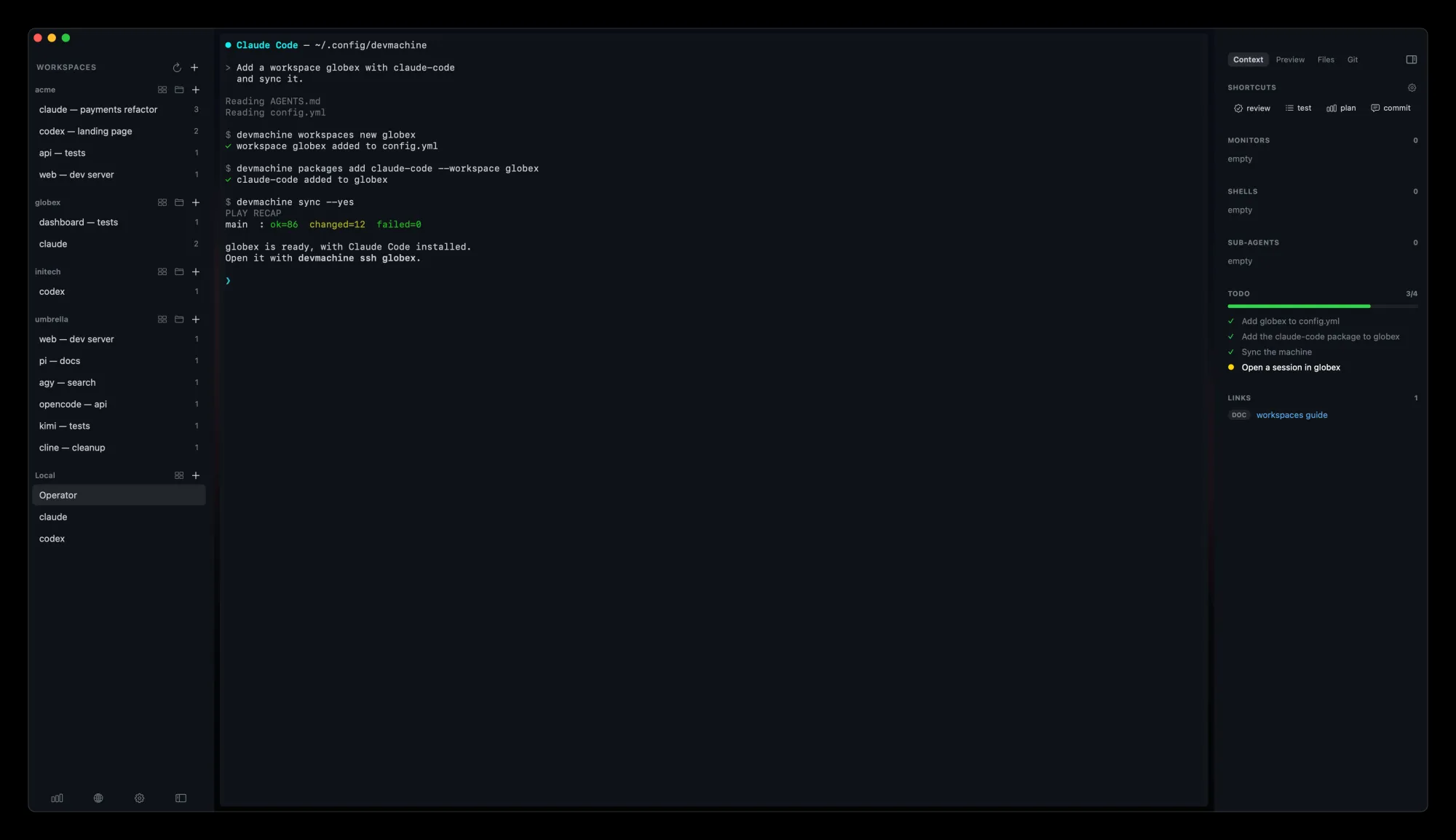
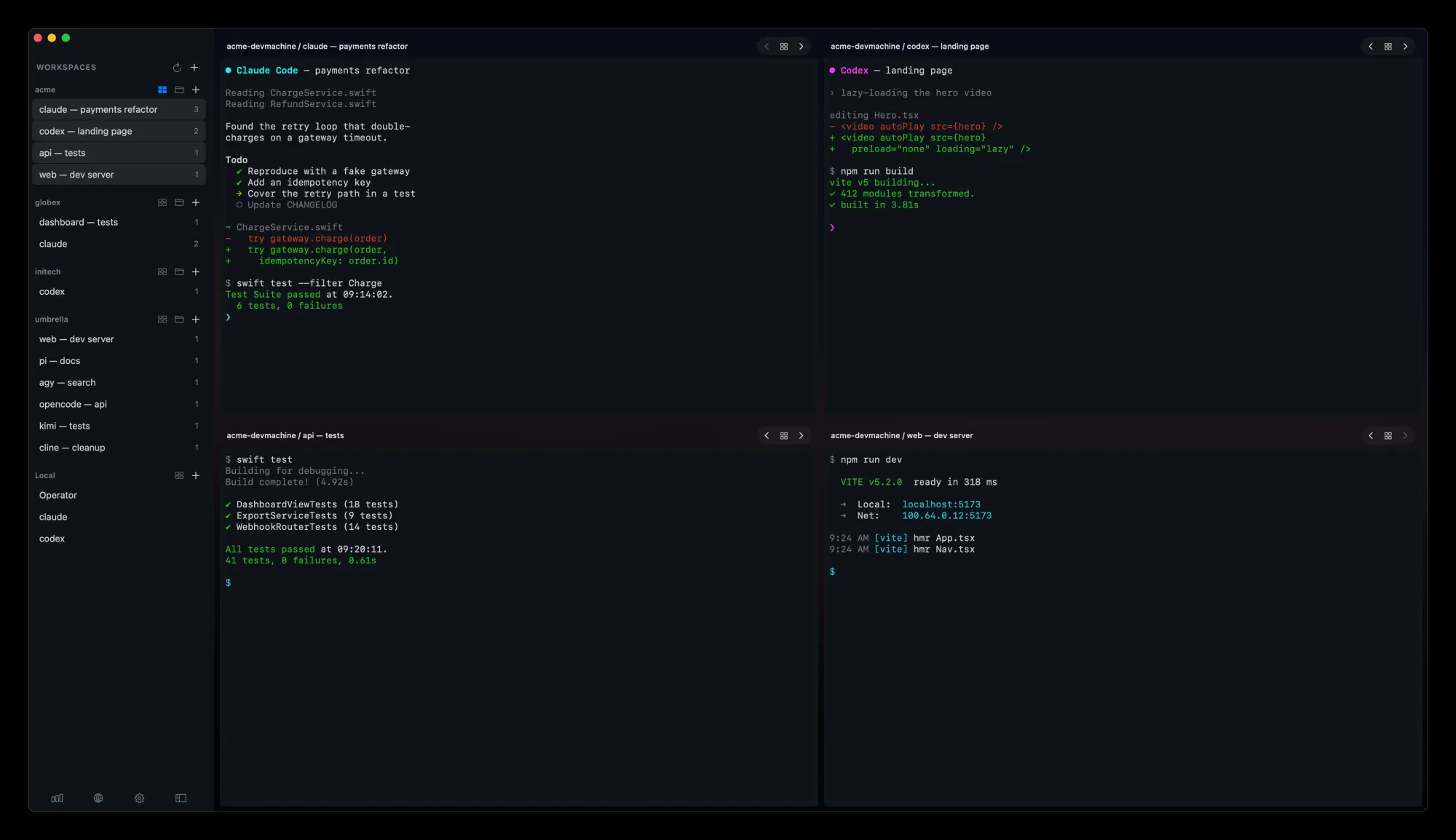
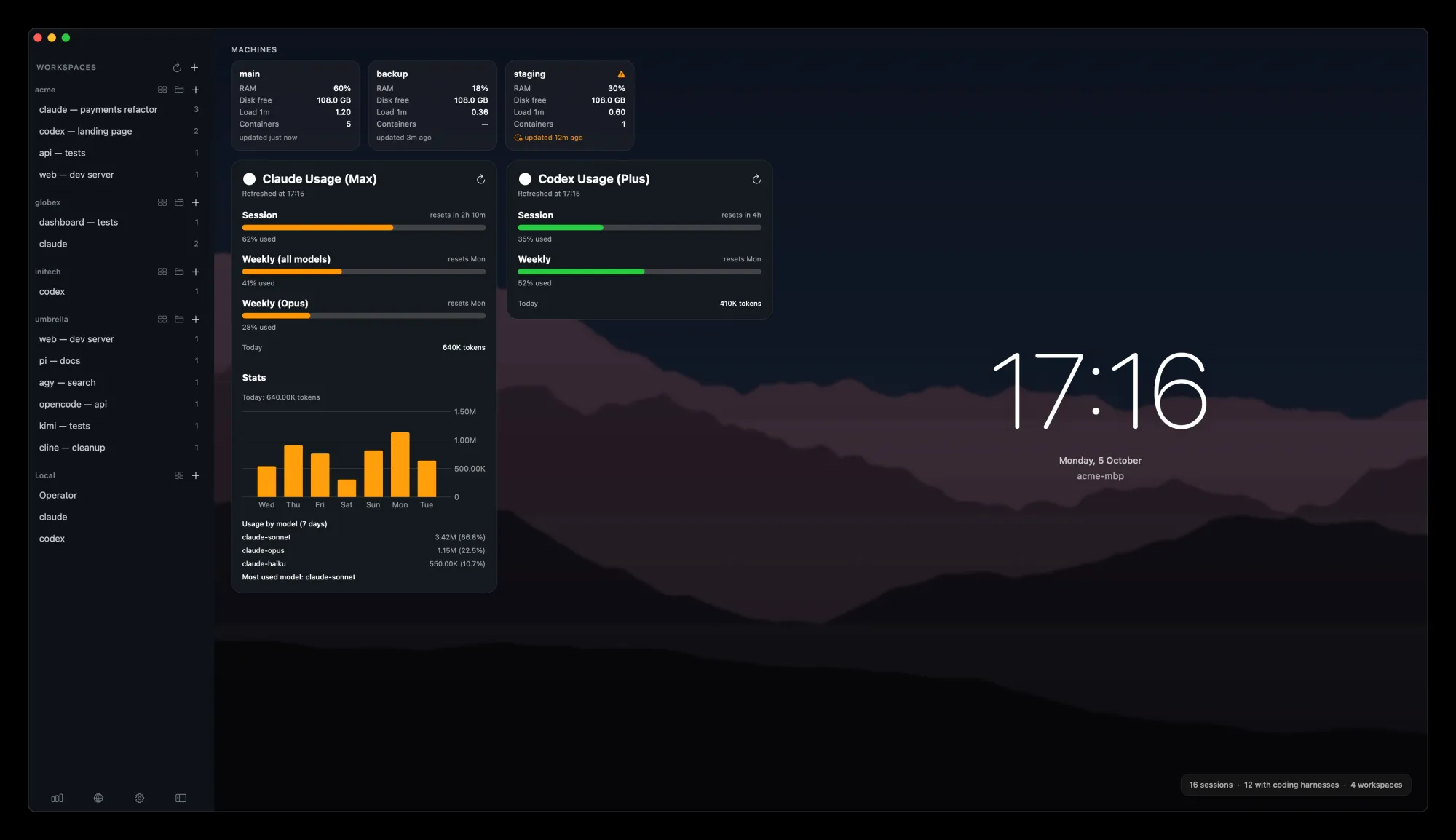
Optional, and easier to start with. Do from one window what you would do with the CLI: set up, open sessions, publish sites, check your machines. It runs the same CLI underneath.
- Guided setup
- Operator session
- Sessions side by side
- All machines at a glance
brew install --cask mydevmachine/tap/devmachine-app · All releases →
05 / Requirements
What your machine needs.
Any Debian, Ubuntu, Arch Linux or macOS machine works: a VPS you rent, or a Mac or PC you already have. Count the apps and coding agents you run at once, and move up later if it gets slow.
A few apps
8 GB RAM
2 vCPU · 100 GB disk
One or two apps and a coding agent.
Recommended
16 GB RAM
4 vCPU · 200 GB disk
Several apps and coding agents at once.
Full development
32 GB RAM
8 vCPU · 400 GB disk
Docker and many intensive apps running together.
No VPS yet? See the Hostinger deals → (opens in a new tab)
06 / FAQ
Questions, answered.
Short answers to what people ask before they start.
More in the troubleshooting guide →Does it log in as root with a password?
Only once. setup uses the root password your provider gave you to install a key that only you have, checks that the key works, and then turns password logins off. From then on the server only accepts that key. It also checks the server's fingerprint first, so you know you reached your own server.
What is a workspace, and why use one?
A workspace is one account on the machine for one project, with its own tools, logins and coding agent. Projects do not see each other's files or tokens, one project breaking does not touch the others, and you open any of them by name: devmachine ssh acme.
Is it free?
Yes. The CLI and every package are free and open source, under the MIT licence, and the Mac app is free too. You pay only for the server you rent, or nothing if you use a computer you already have.
Which systems does it work with?
The machines it sets up run Debian, Ubuntu, Arch Linux or macOS. The CLI runs on your computer: macOS, Linux, or Windows through WSL 2. A few packages, such as caddy, docker and tailscale, run only on Linux.
Does it work on Windows?
Yes, through WSL 2. Install Ubuntu (wsl --install -d Ubuntu-24.04), open its terminal and install the CLI the same way as on Linux: curl -fsSL https://mydevmachine.sh/install.sh | sh. Every command works there: setup, sync, ssh, run, upload and update. Your configuration lives in your Linux home inside WSL. We test it on Windows with Ubuntu 24.04 under WSL 2. It does not run in PowerShell or cmd, and the desktop app is macOS only.
How do I configure my machine?
Ask your coding agent. After devmachine skills add, any Claude Code or Codex session can add packages, workspaces and sites for you. For bigger changes, like writing your own package, open a session in the configuration folder: it holds your whole setup, and a CLAUDE.md there can tell the agent your own rules.
Can I use my old laptop?
Yes, if it runs Debian, Ubuntu, Arch Linux or macOS and you can reach it over SSH as root or as an admin login with passwordless sudo. On a Mac, turn on Remote Login first. Set it up from your computer on the same network with devmachine machines add. Then put it on Tailscale: on Linux, add the tailscale package and sign it in with devmachine login tailscale; on a Mac, install the Tailscale app yourself. Put tailscale:<name> first in its addresses, and you reach it from anywhere, even from outside your home.
Can I use more than one machine?
Yes. Add as many as you like with devmachine machines add. Each workspace belongs to one machine, so devmachine ssh acme finds the right one. A command that acts on a whole machine asks you to name it with --machine: it never guesses.
Do I need a domain?
No. You need one only to show an app at a public URL with HTTPS. Without one, devmachine tunnel acme 3000 opens the app on your own computer, and nothing is published.
What is Ansible?
Ansible is a well-known open source tool that installs and configures software on a server from a written description. devmachine uses it underneath, so you never need to learn it. You write Ansible only if you write a package of your own.
Where is my configuration?
In a folder on your computer, ~/.config/devmachine. devmachine config path prints where it is. It holds your machines, workspaces, packages and settings, and nothing personal ever goes into devmachine itself.
How should I save my configuration?
In git. devmachine setup git turns the folder into a repository, and every change the CLI makes becomes a commit. Push it to a private remote to keep a backup and see what changed. Private keys and secrets are never committed.
What is Tailscale? Does it work with Headscale?
Tailscale puts your computer and your servers on a private network of your own, so a server is reachable even when its public address is not. The tailscale package signs in to Tailscale's own service. With Headscale, run tailscale up --login-server on the machine yourself; devmachine only needs the address. Any other VPN works the same way.
How can I install my agents?
Look in the official packages first: Claude Code, its plugins and Remote Control are there, ready to add. For anything else, like another agent or a tool of your own, ask your coding agent to write a package for it. It can save anything in your configuration folder, and devmachine sync installs it like any other package.
How do I add more packages?
devmachine packages list shows what exists. devmachine packages add docker adds one to a machine, --workspace acme adds it to a workspace, and devmachine sync installs it. To make your own, start with devmachine packages new.
What happens if I stop using it?
Your machines keep working. Underneath it is ordinary accounts, SSH and git: each workspace is an account you can still log in to with ssh, and nothing of devmachine runs on the machine between commands.
07 / Documentation
Everything is written down.
How each command works, why it works that way, and what to do when something fails.
Read the documentation →