devmachine

macOS app · optional

Devmachine for Mac.

Do from one window what you would do with the devmachine CLI: set up machines, open sessions, add packages, publish sites, check health.

You do not need it. The app runs the same CLI on the same configuration folder, so anything you do in one shows up in the other. Start here or in the terminal, and switch any time.

Download for macOS macOS 14 Sonoma or later

Or with Homebrew:

brew install --cask mydevmachine/tap/devmachine-app

On Homebrew 7, trust the tap first: brew trust mydevmachine/tap.

Signed and notarized by Apple, so it opens without warnings. Not on the App Store. All releases →

It uses:

  • The devmachine CLI on your Mac. No machine yet? The app's setup walks you through it.
  • The devmachine-app package on a machine, for the context panel and stats.
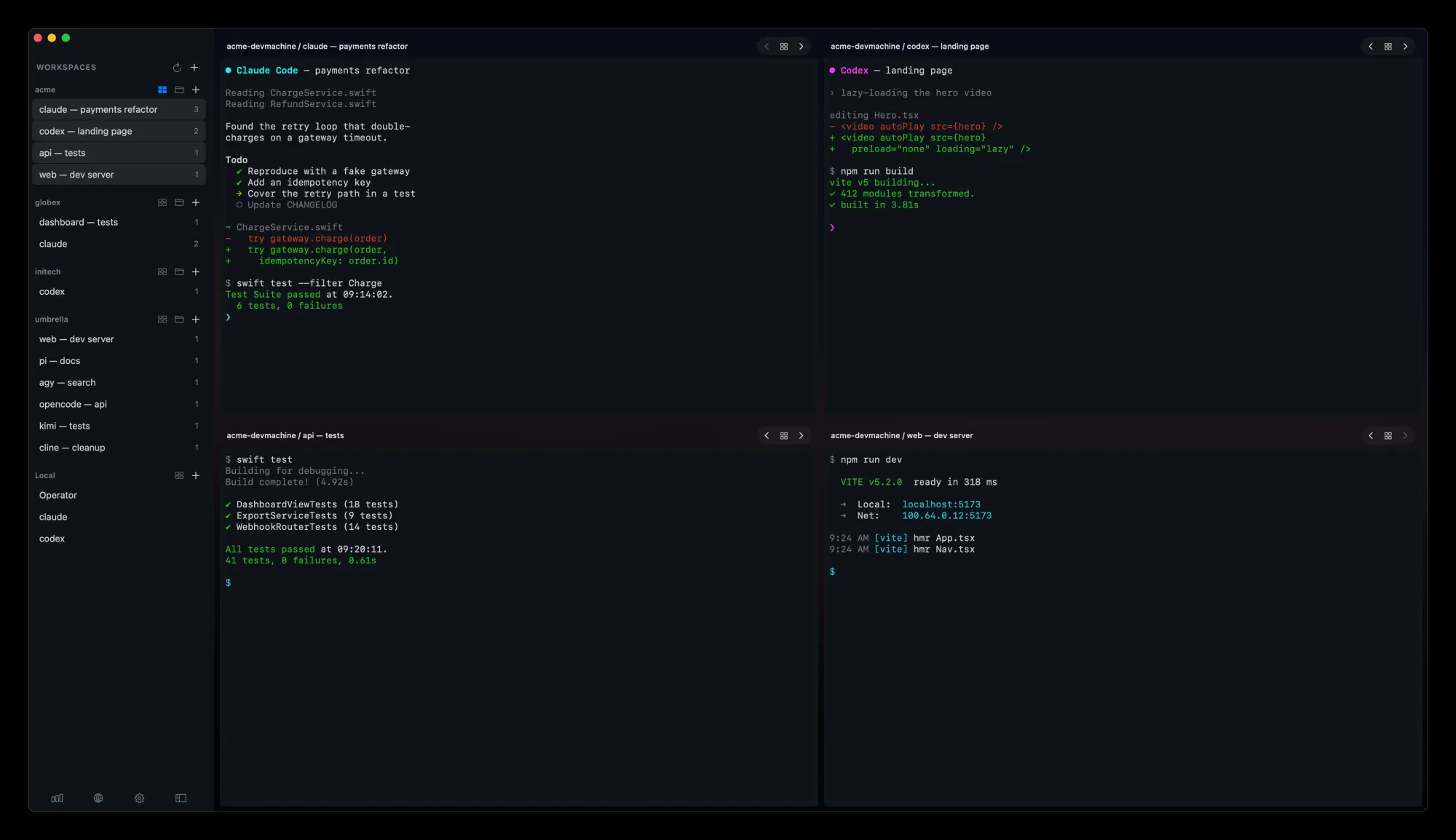
Four sessions of the acme workspace in a grid: Claude Code, Codex, tests and a dev server.

Do it from the app

What you can do here.

01

Set up from the app

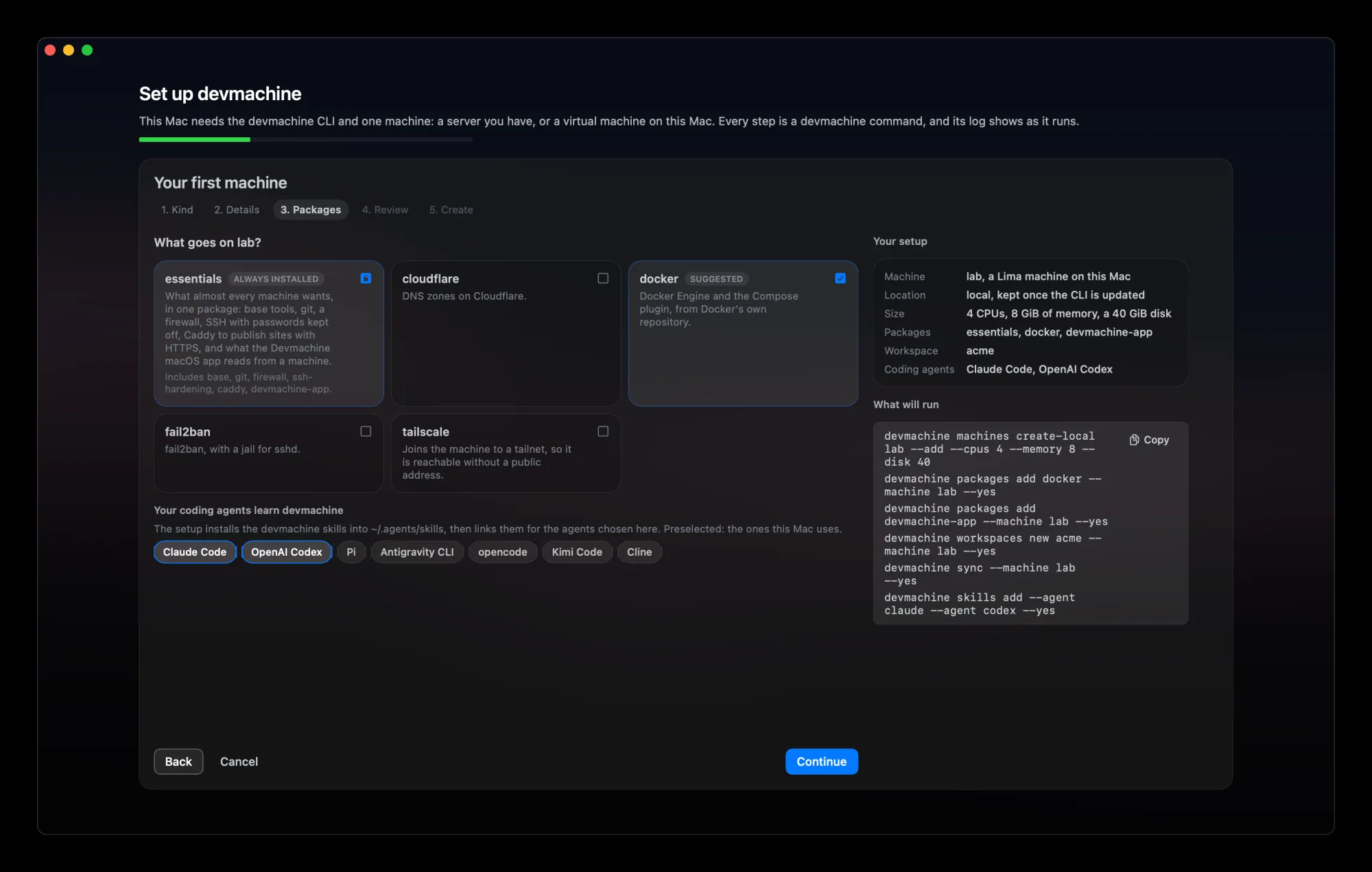
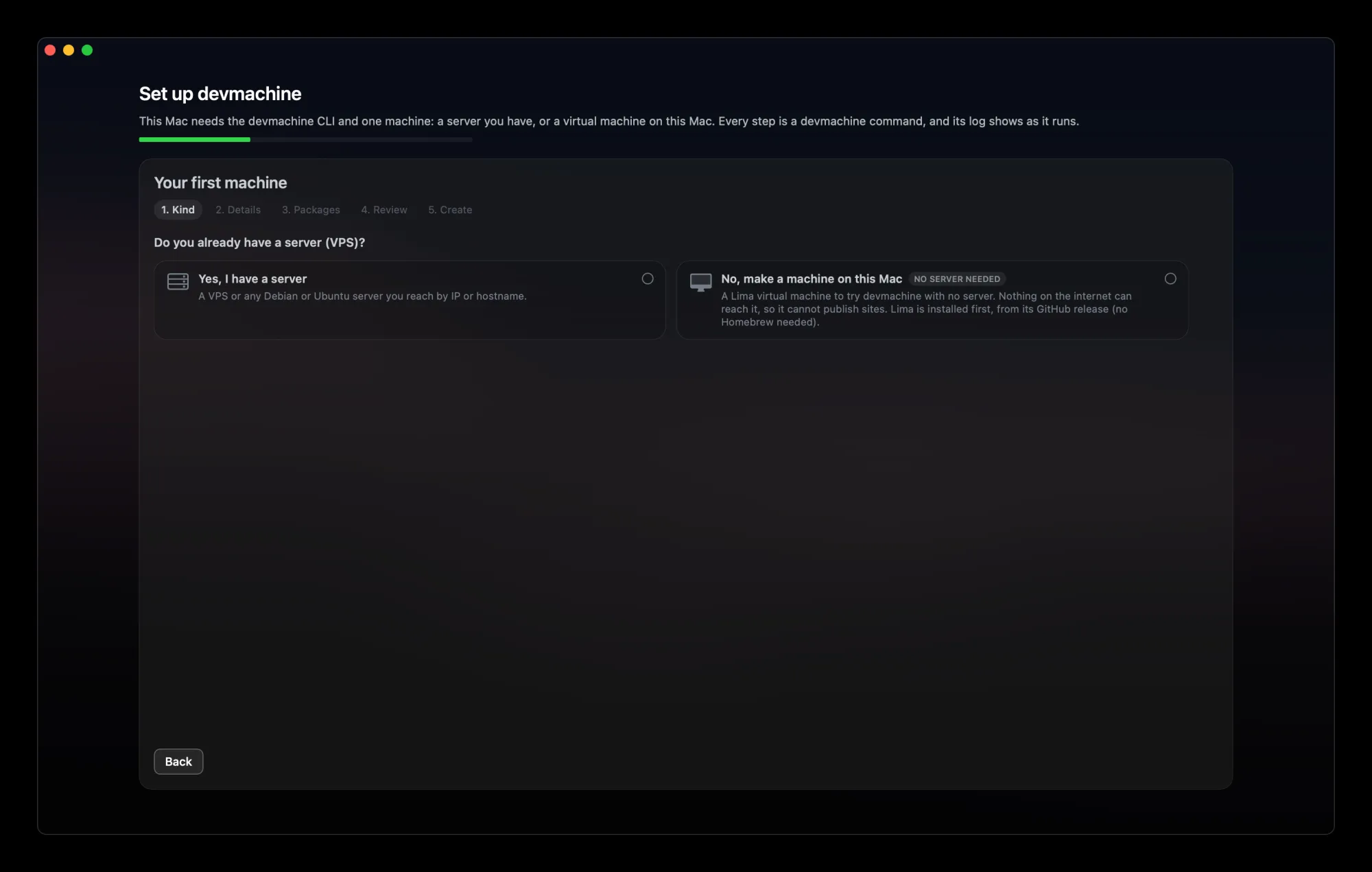
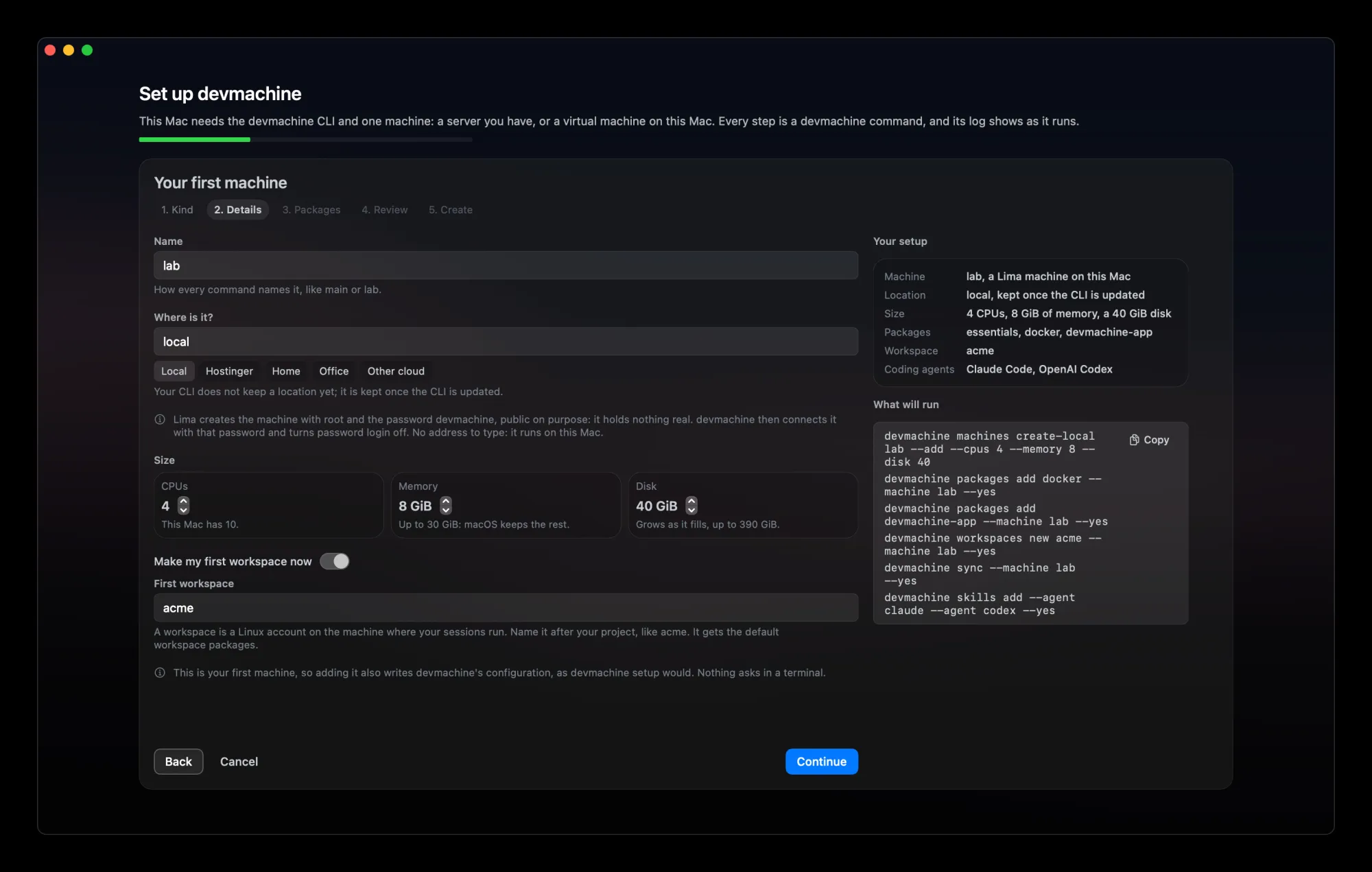
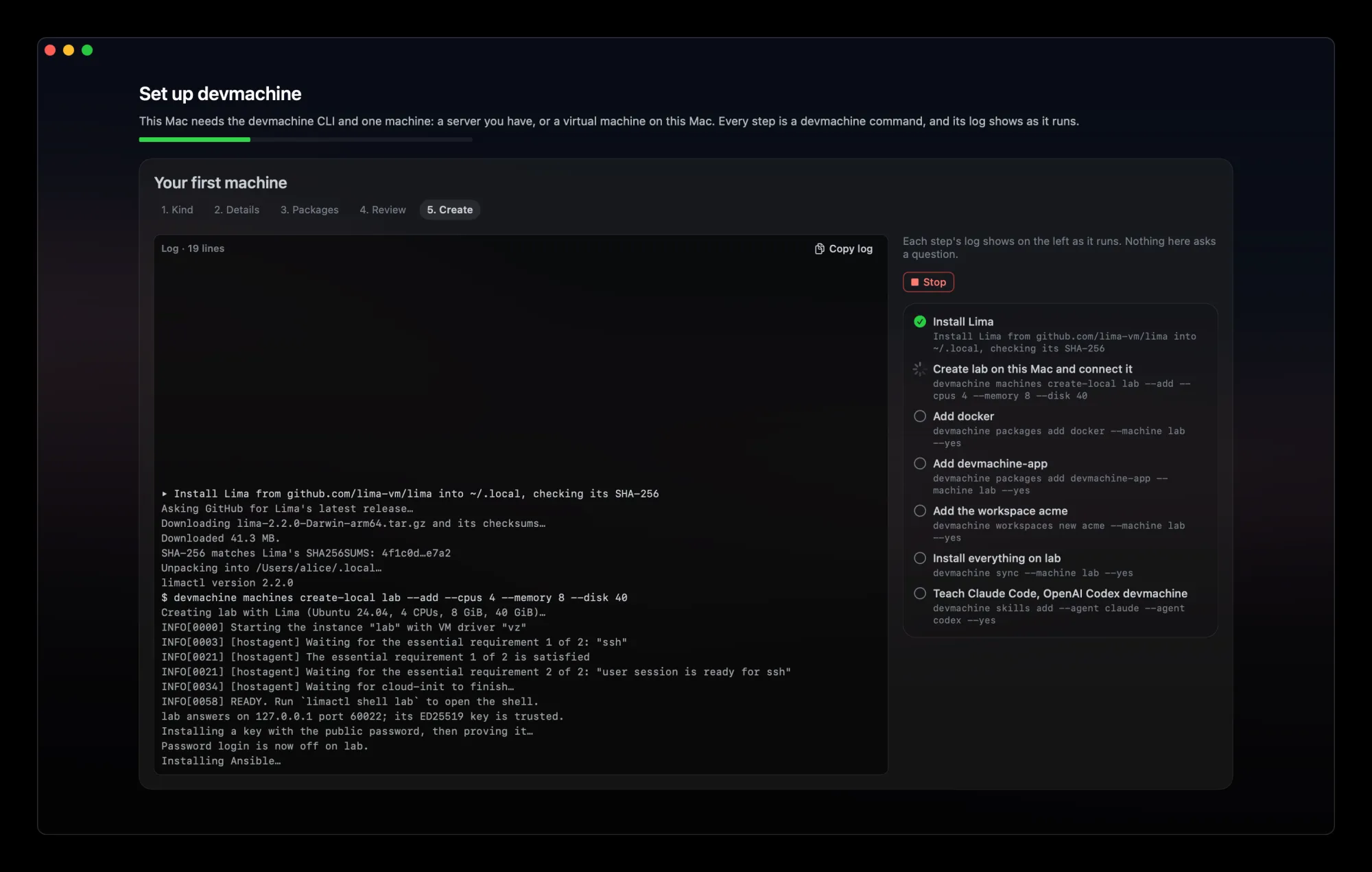
No machine yet? The app installs the CLI, then asks if you have a server. No server? It makes a virtual machine on your Mac. You pick the packages, your first workspace and the coding agents that learn devmachine, see every command before it runs, and watch each log as it goes.

The setup on the packages step for the machine lab: essentials, docker and other package cards, a row of coding agents (Claude Code, OpenAI Codex, Pi, Antigravity CLI, opencode, Kimi Code, Cline) with Claude Code and OpenAI Codex chosen, and beside it a summary of the answers and the devmachine commands they run.
Packages, coding agents, and the commands they run.
The first setup step asking "Do you already have a server (VPS)?", with two cards: Yes, I have a server, or No, make a machine on this Mac.

A server you have, or a machine on your Mac.

The details step for a Lima machine named lab, located on this Mac: 4 CPUs, 8 GiB of memory and a 40 GiB disk, and a first workspace named acme.

Say where it is, size it, and name your first workspace.

The setup running: the log of installing Lima and creating lab on the left, and the list of steps on the right, with Install Lima done and Create lab in progress.

Every step runs here, with its log.

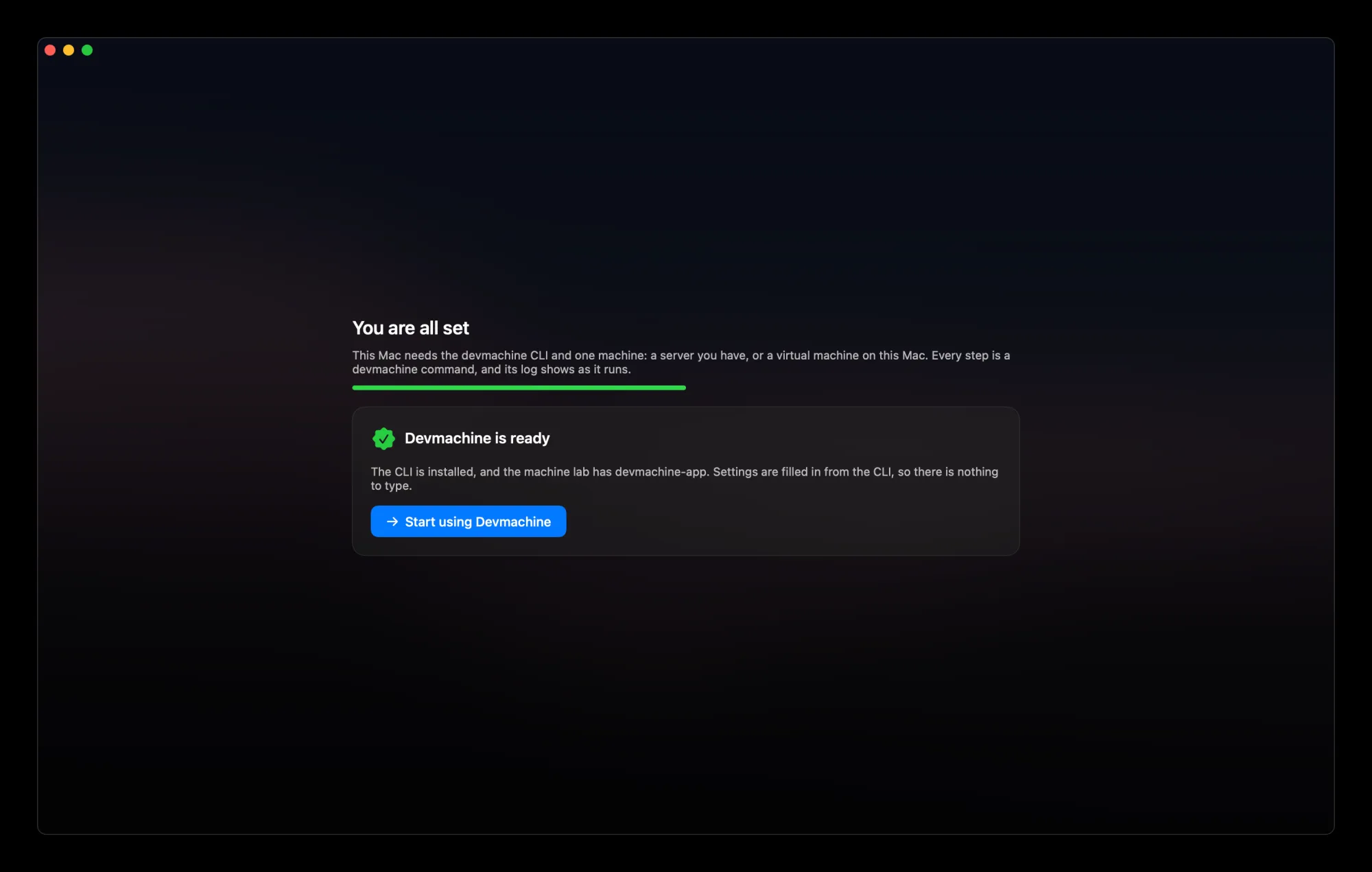
The last setup screen, "You are all set": Devmachine is ready, with a Start using Devmachine button.

Ready to use.

02

The Operator session

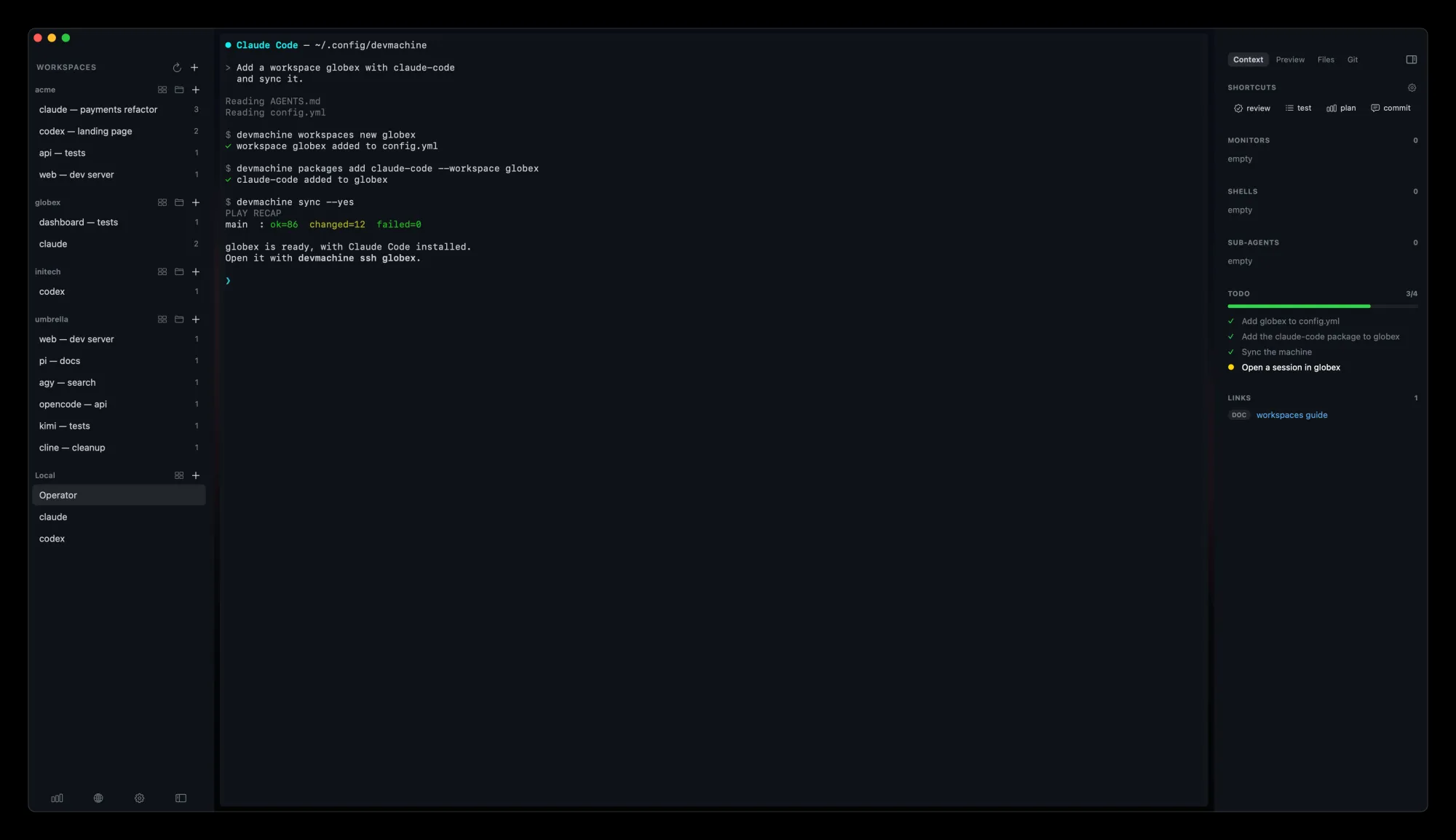
Under Local, the sidebar always has a session called Operator. It opens in your devmachine folder, ~/.config/devmachine, where your whole setup lives. Start Claude Code or Codex there: it reads AGENTS.md, and you ask for changes in plain words.

  • > Add a workspace called globex and sync it.
  • > Add the claude-code package to acme.
  • > Publish port 3000 of acme at app.example.com.

Why a session in the configuration folder →

The Operator session under Local, with Claude Code open in ~/.config/devmachine adding the globex workspace.
Operator: a session in your devmachine folder.

03

Sessions side by side

Open several sessions of one workspace and watch them in a grid. Sessions keep running when you quit the app, and even while it updates: remote ones on their machine, local ones on your Mac. Local or remote, every feature works the same.

Four sessions of the acme workspace in a grid: Claude Code, Codex, tests and a dev server.
Four sessions of acme at once.

04

Context next to each session

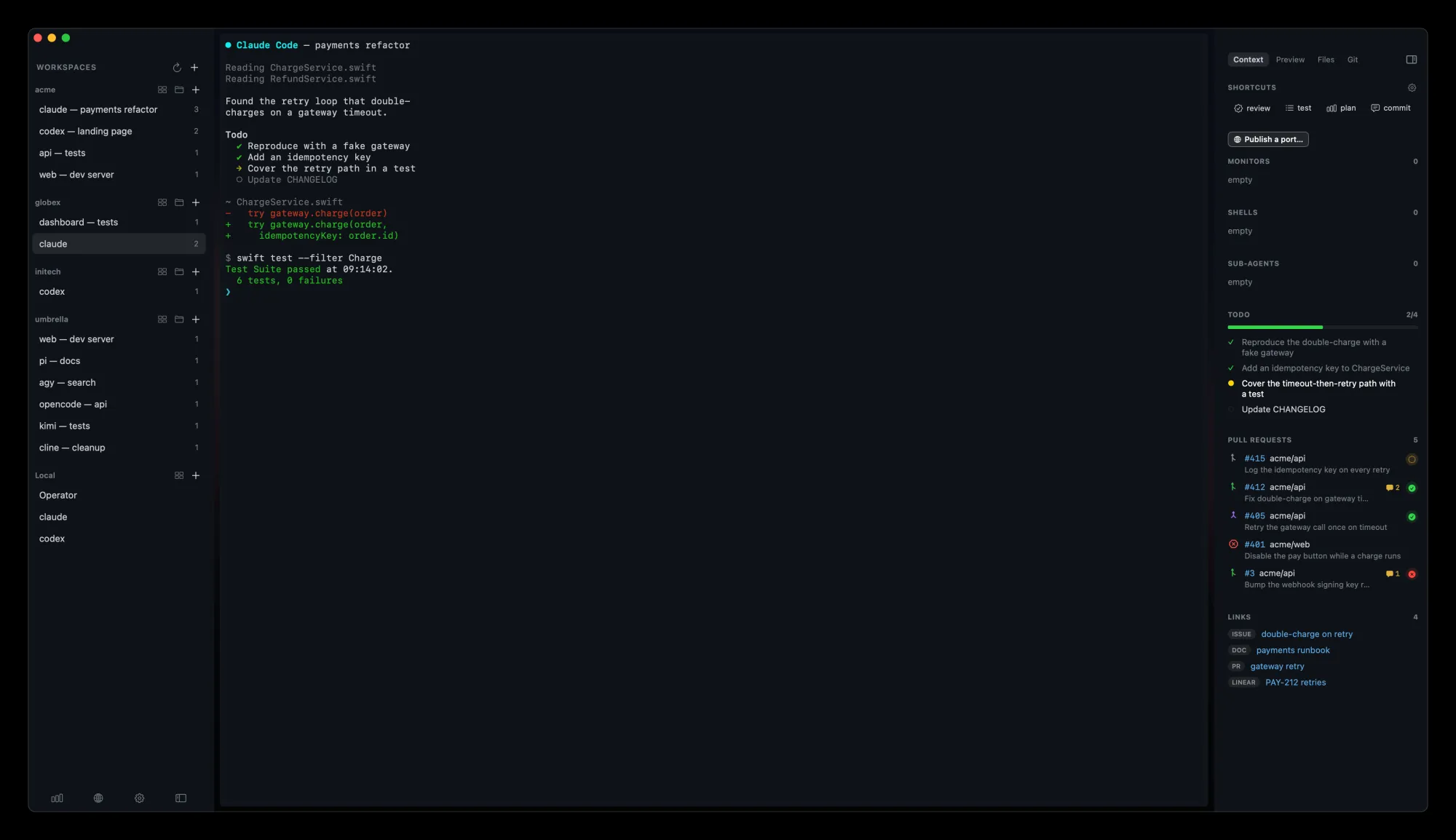
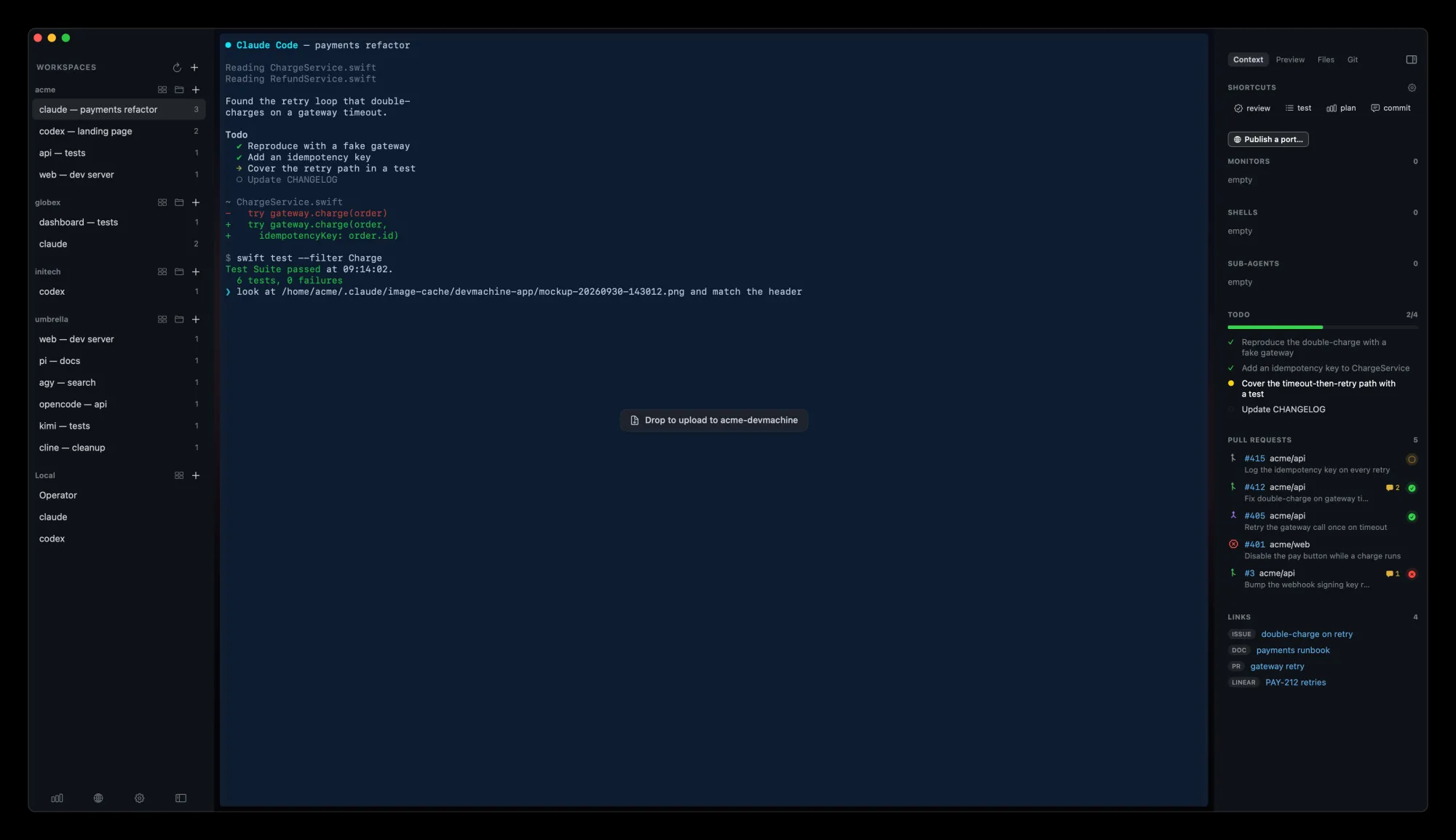
Beside the terminal: the todo list, pull requests and links of a Claude Code, Codex or Pi session, plus its files and git status.

A Claude Code session with the context panel open, showing its todo list, pull requests and links.
The todo, pull requests and links of the session.

05

Drop files onto a session

Drag files from Finder onto a session and they land on its machine, with the path typed at the prompt for you. Paste an image with ⌘V and it works the same way. Each file keeps its name plus the time, so nothing gets overwritten.

A file dragged over the Claude Code session of acme: the pane shows "Drop to upload to acme-devmachine", and the prompt already holds the path of an earlier upload, mockup-20260930-143012.png, inside a request to match the header.
Drop a file, get its path on the machine.

06

⌘K for everything

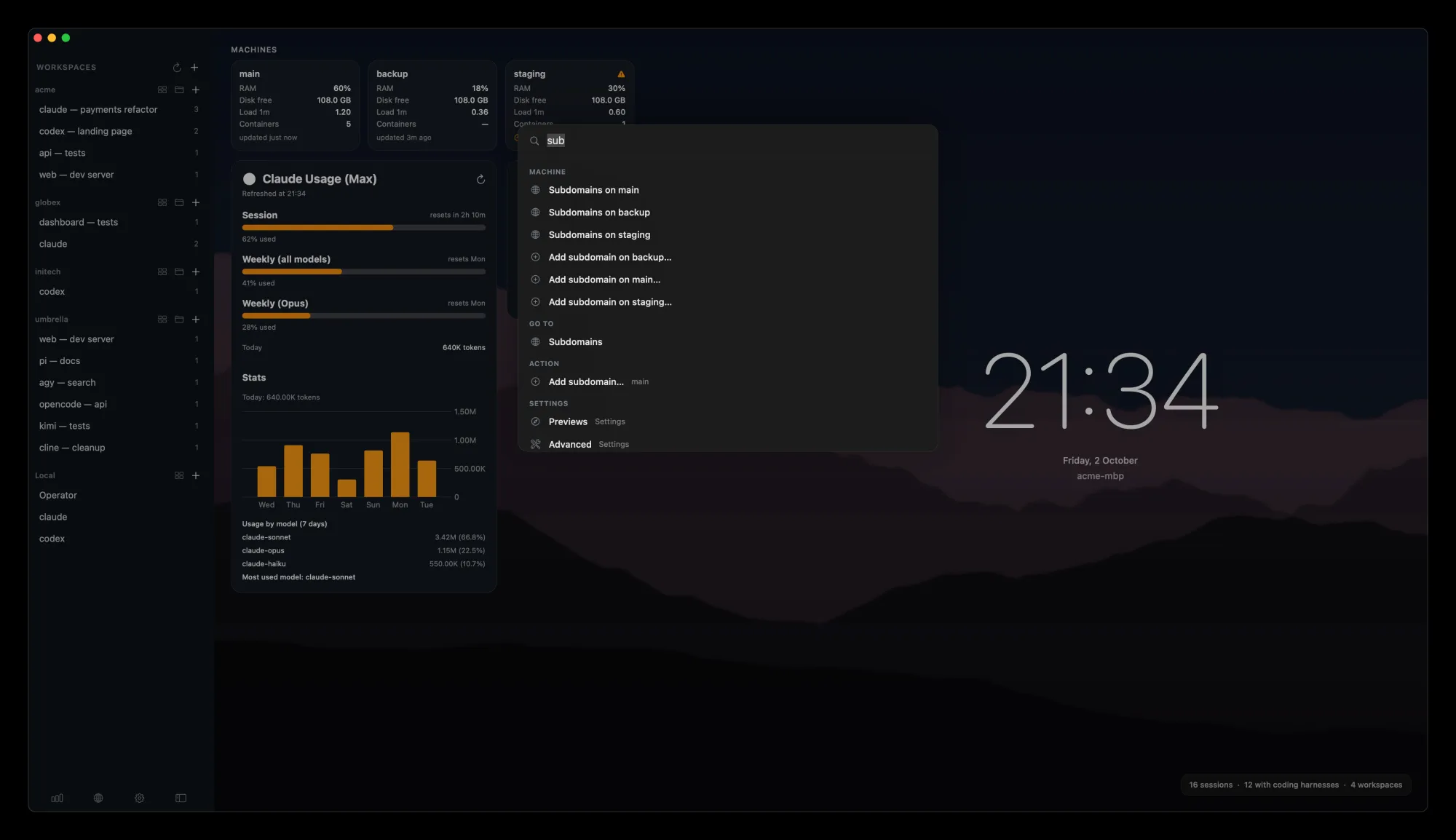
Press ⌘K and type a few letters. Jump to any screen, session, machine or action without leaving the keyboard.

The command palette open over the app, listing screens, sessions of acme, machines and actions that match the search.
One search for screens, sessions, machines and actions.

07

Every machine at a glance

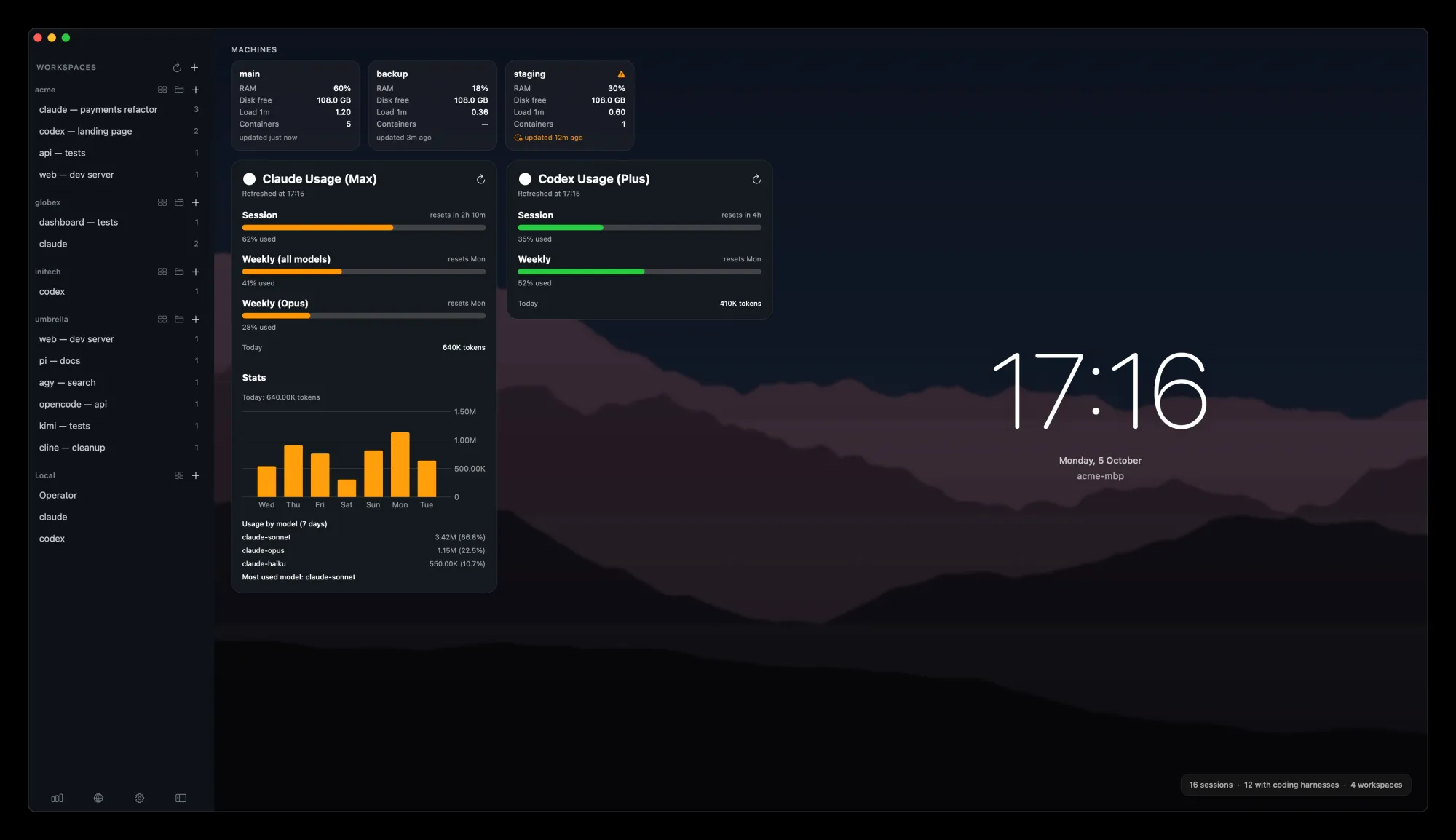
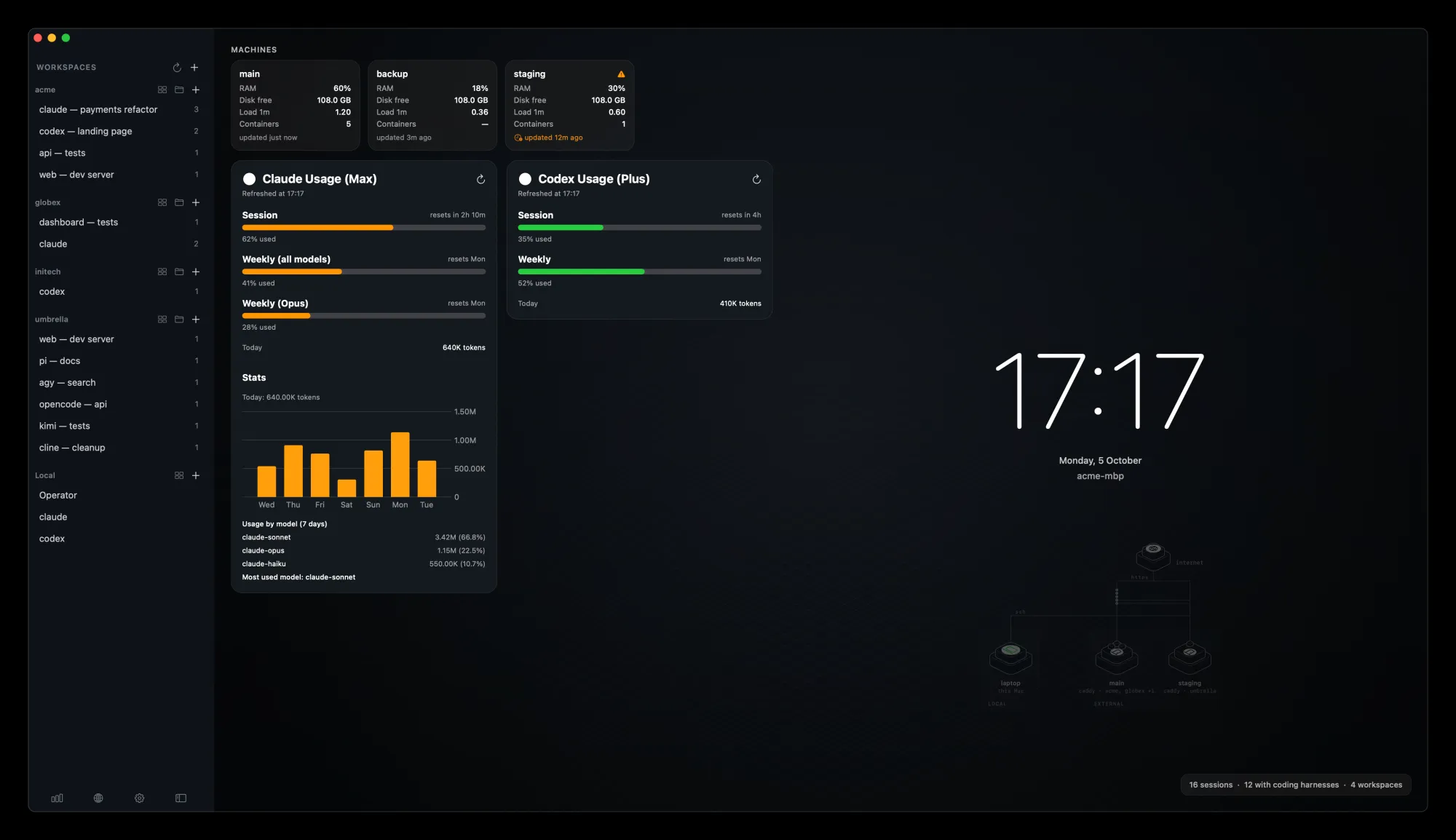
The home screen shows each machine with its RAM, disk, load and containers. It refreshes in the background, so the numbers are ready when you look.

The home screen with three machines, main, backup and staging, each with RAM, disk, load and container counts, above the Claude Code and Codex usage cards.
Every machine, on one screen.

08

Your network as the background

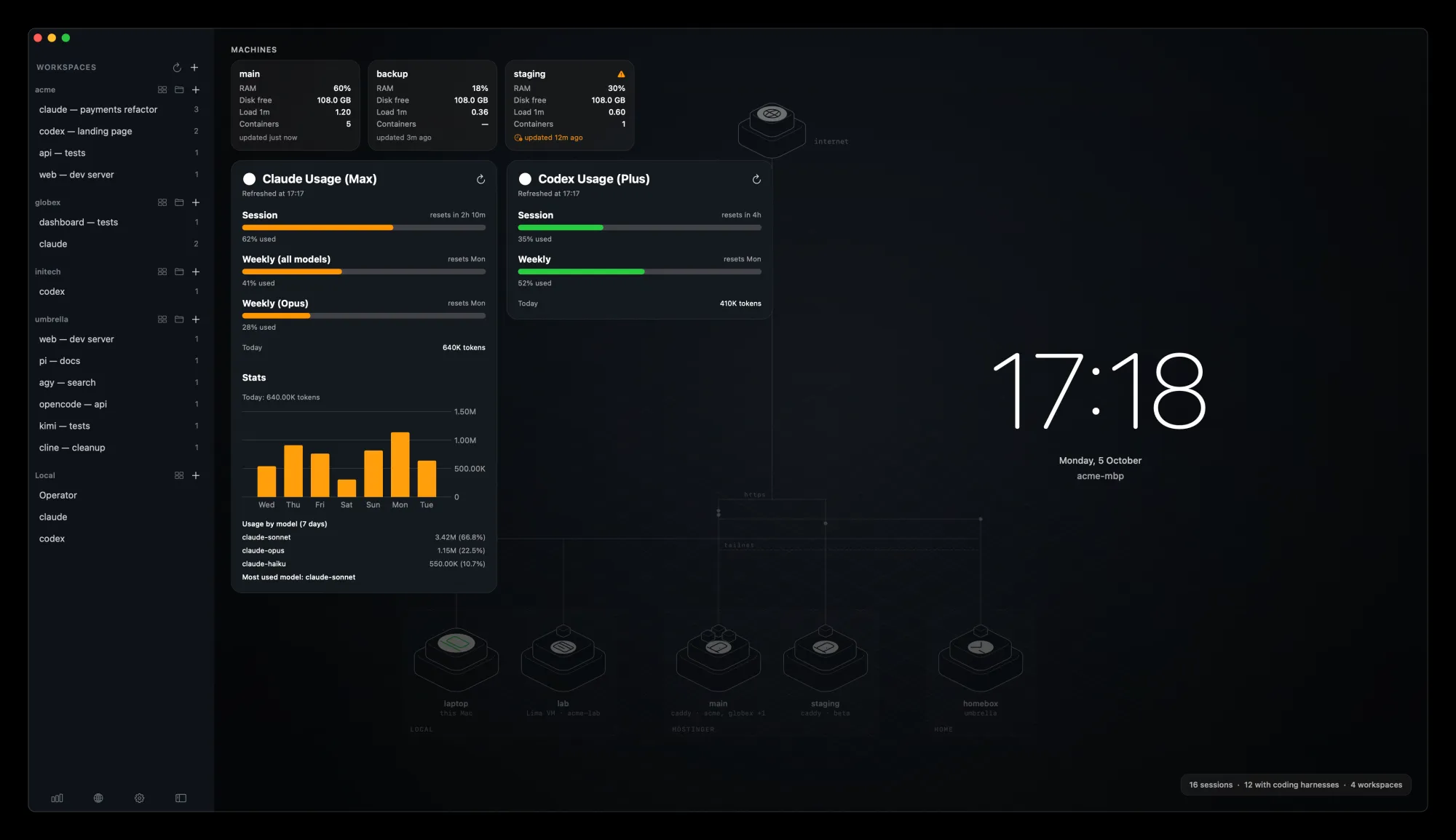
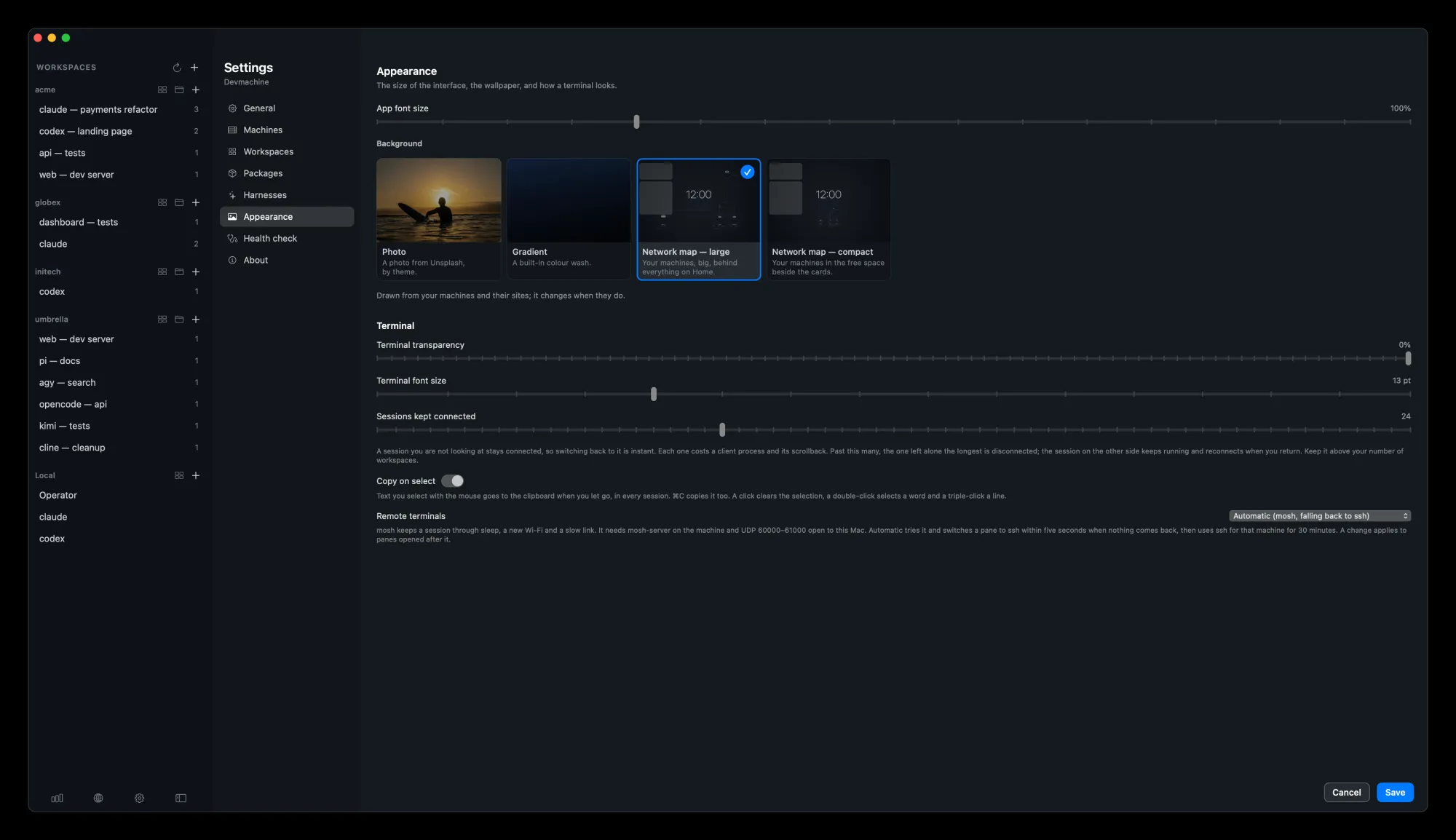
Pick what sits behind Home in Settings → Appearance: a photo, a gradient, or a map of your network, large behind everything or compact beside the cards. The map draws from your machines and sites, so it changes when they do.

The home screen over a large, faint network map: the internet at the top, links down to five machines, laptop, lab, main, staging and homebox, grouped by place, behind the machine and usage cards and the clock.
The large map, behind everything on Home.
Settings on Appearance: the Background picker with four cards, Photo, Gradient, Network map large and Network map compact, with the large map chosen, above the terminal settings.

Photo, gradient, or the map.

The home screen with a compact network map under the clock: the internet linked to laptop, main and staging.

The compact map, in the free space.

09

Stats per machine

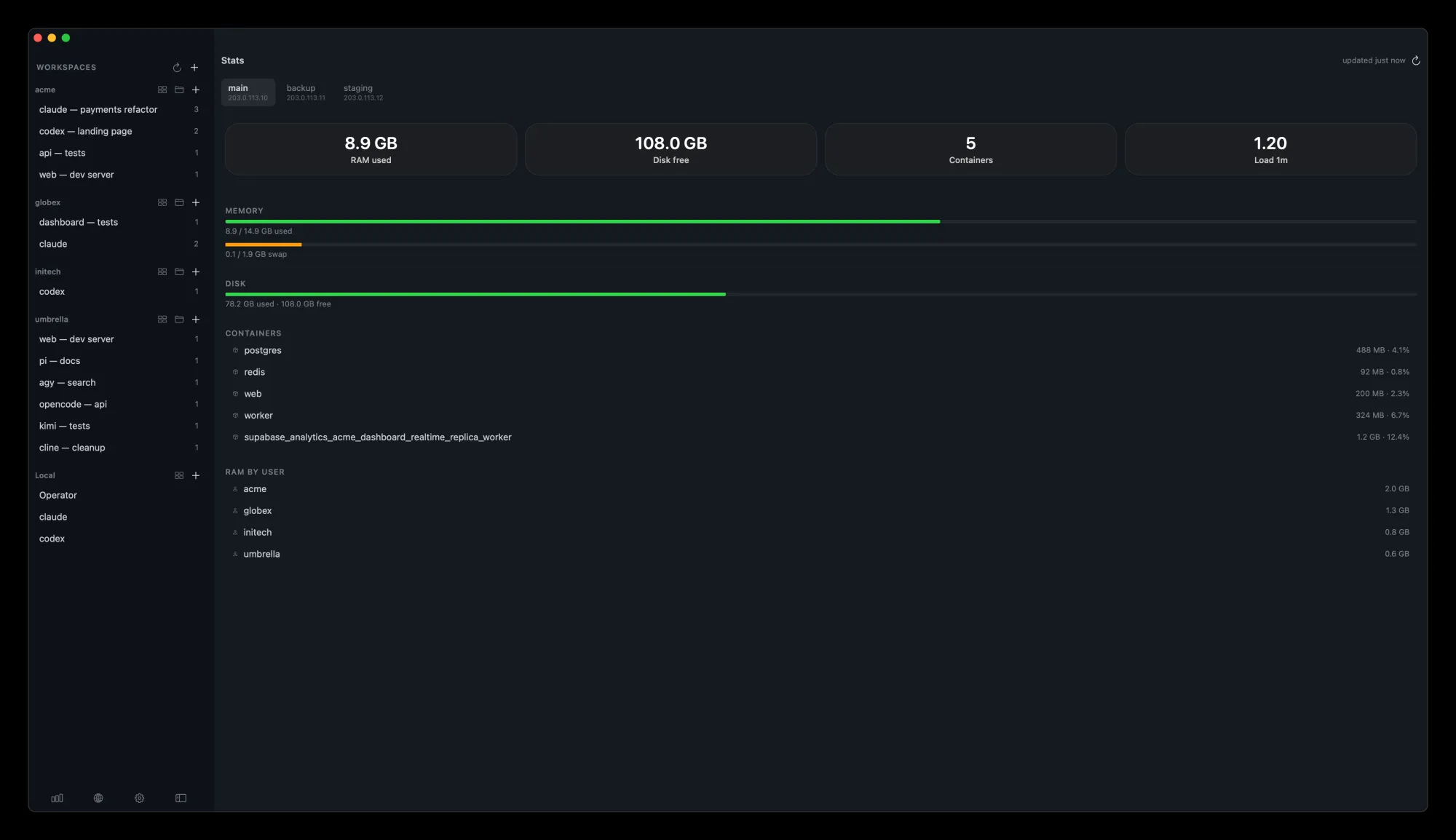
Pick a machine to see its memory, disk, load and containers, with RAM split by workspace.

The stats page of the main machine: memory and disk bars, running containers and RAM by workspace.
Memory, disk and containers of one machine.

10

Sites and DNS

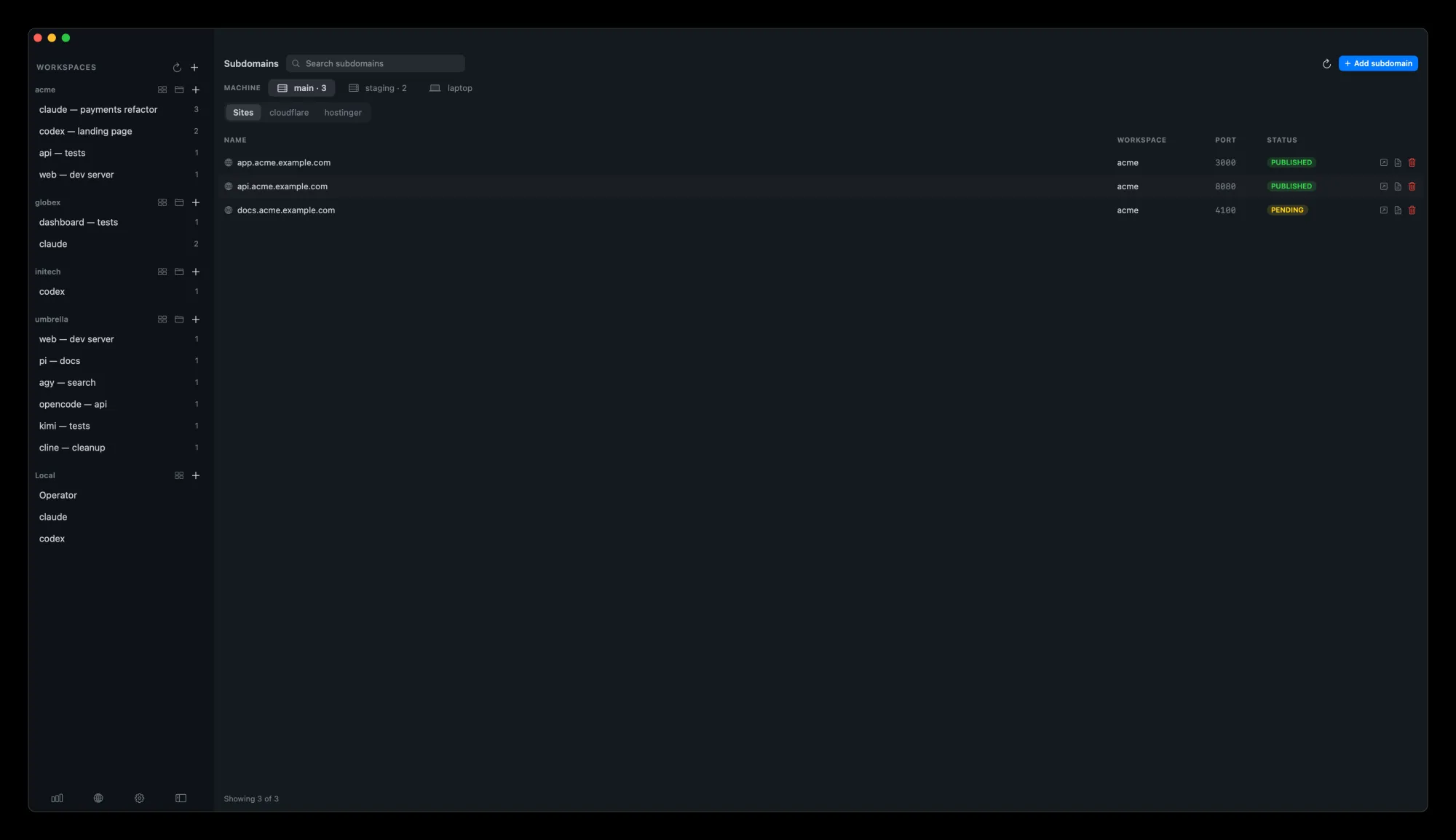
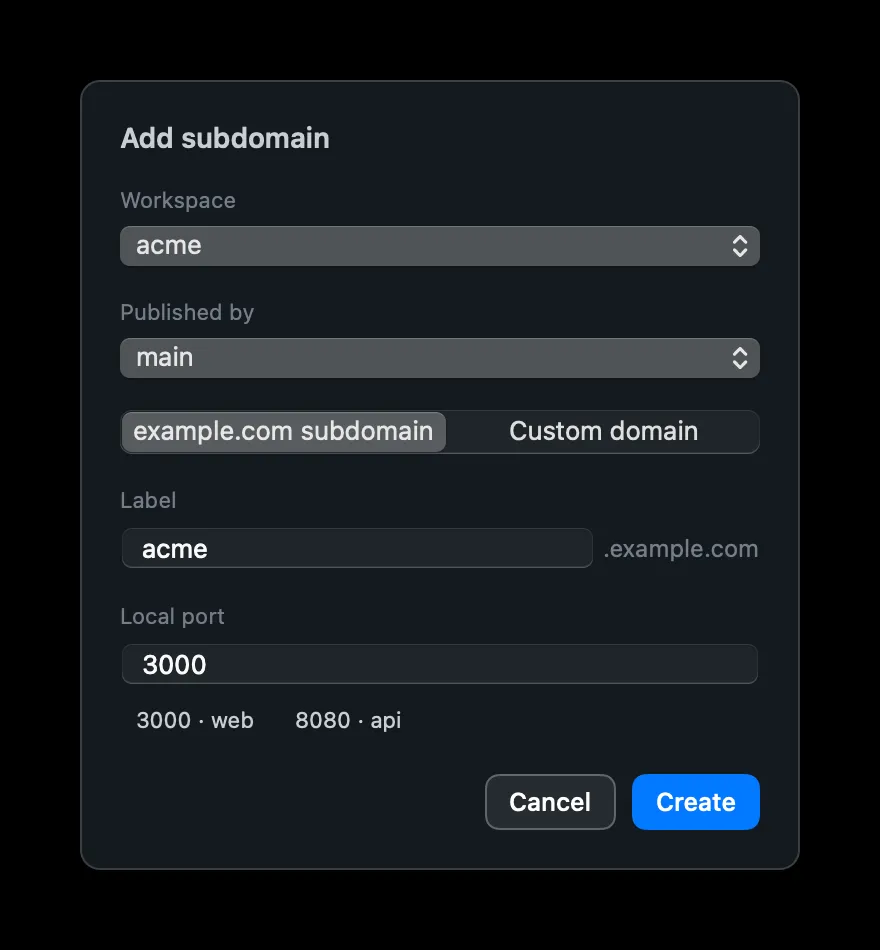
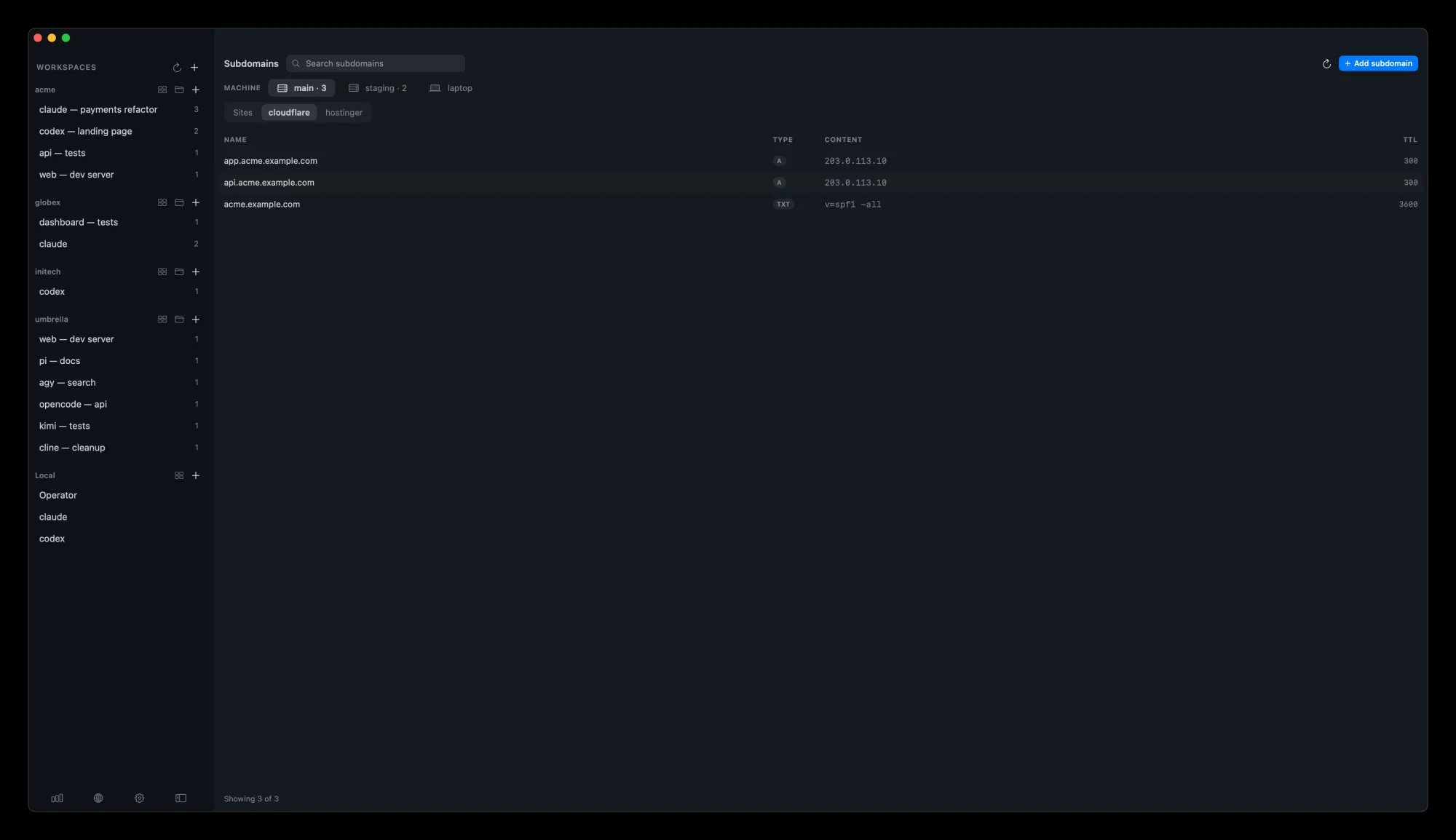
See every site each machine publishes. Publish a port in a few clicks: pick a workspace, a name and a port. The DNS records of each provider are one tab away.

The subdomains page listing three sites under example.com, with their workspace, port and status.
Every published site, per machine.
The Add subdomain dialog with the acme workspace published by main, the label acme and local port 3000.

Publish a port.

The Cloudflare tab of the subdomains page listing DNS records for example.com.

DNS records, per provider.

11

Machines on a map

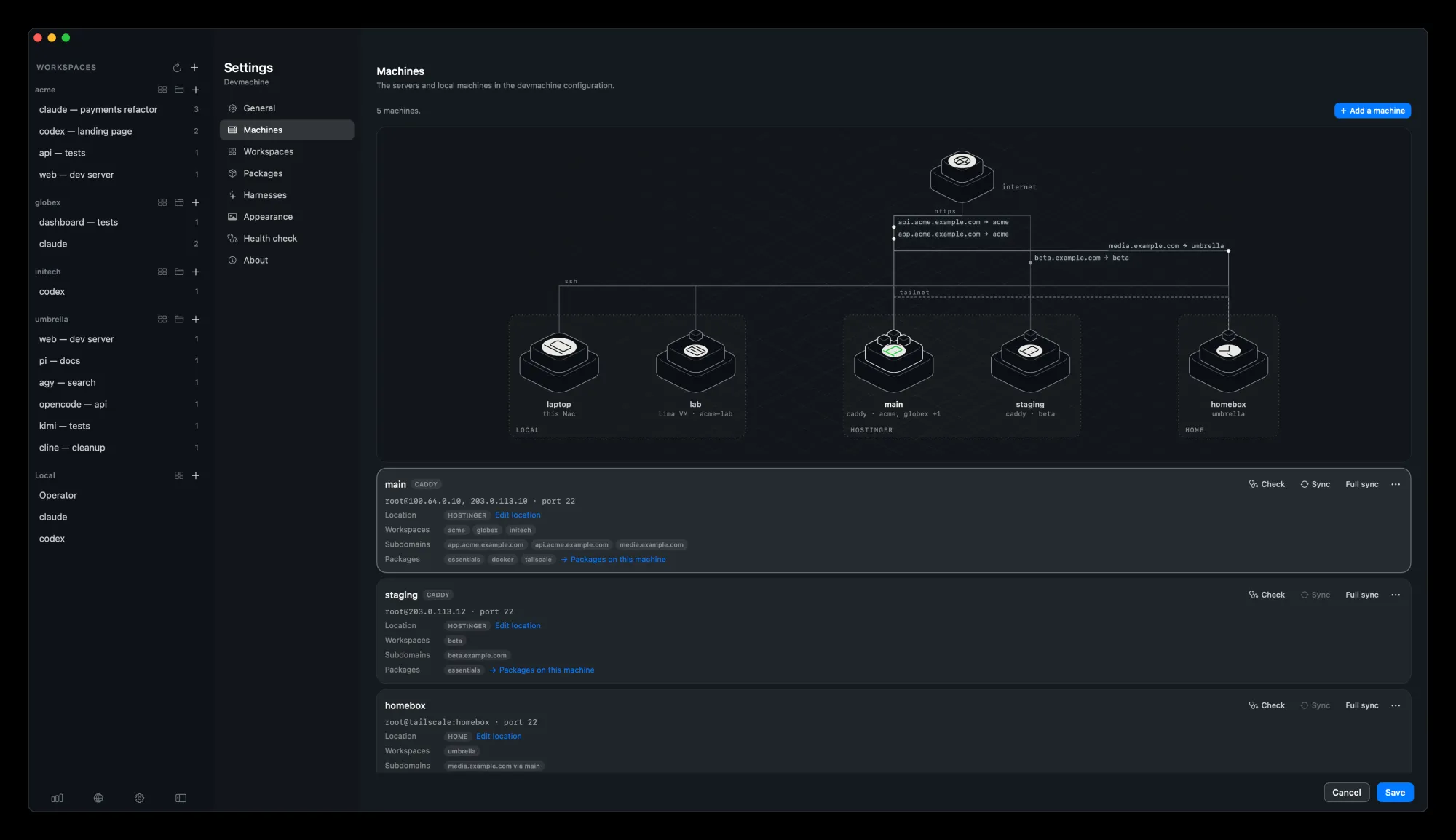
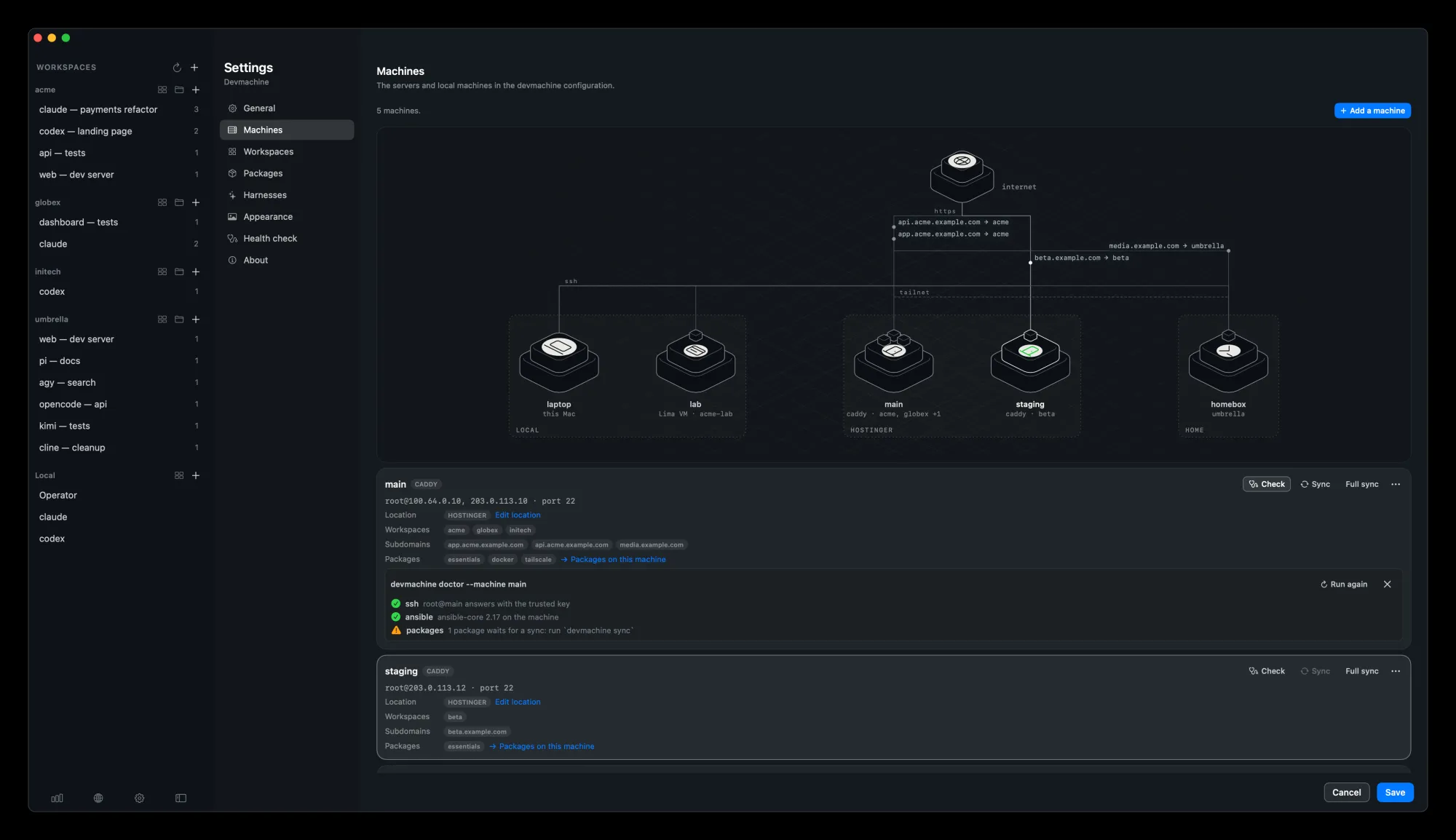
Settings → Machines draws your network: the internet, the machine that runs Caddy and the subdomains it serves, ssh from this Mac, tailnet links, and the workspaces on each machine. Machines in one place share a zone. Pick one to check it, sync it, see its addresses and credentials, or change where it is. A Lima machine on your Mac starts, stops and goes away from here too. Add machine asks where the new one lives.

Settings on Machines: an isometric map with the internet at the top, sites such as app.acme.example.com routed through main, ssh from the laptop, a tailnet link, and five machines grouped as local, hostinger and home. Below it, main is selected with its address, location, workspaces, subdomains and packages, and Check, Sync and Full sync buttons.
Every machine, where it lives and how it connects.
The main machine card with devmachine doctor --machine main open: ssh and ansible pass, and one package waits for a sync.

Check one machine.

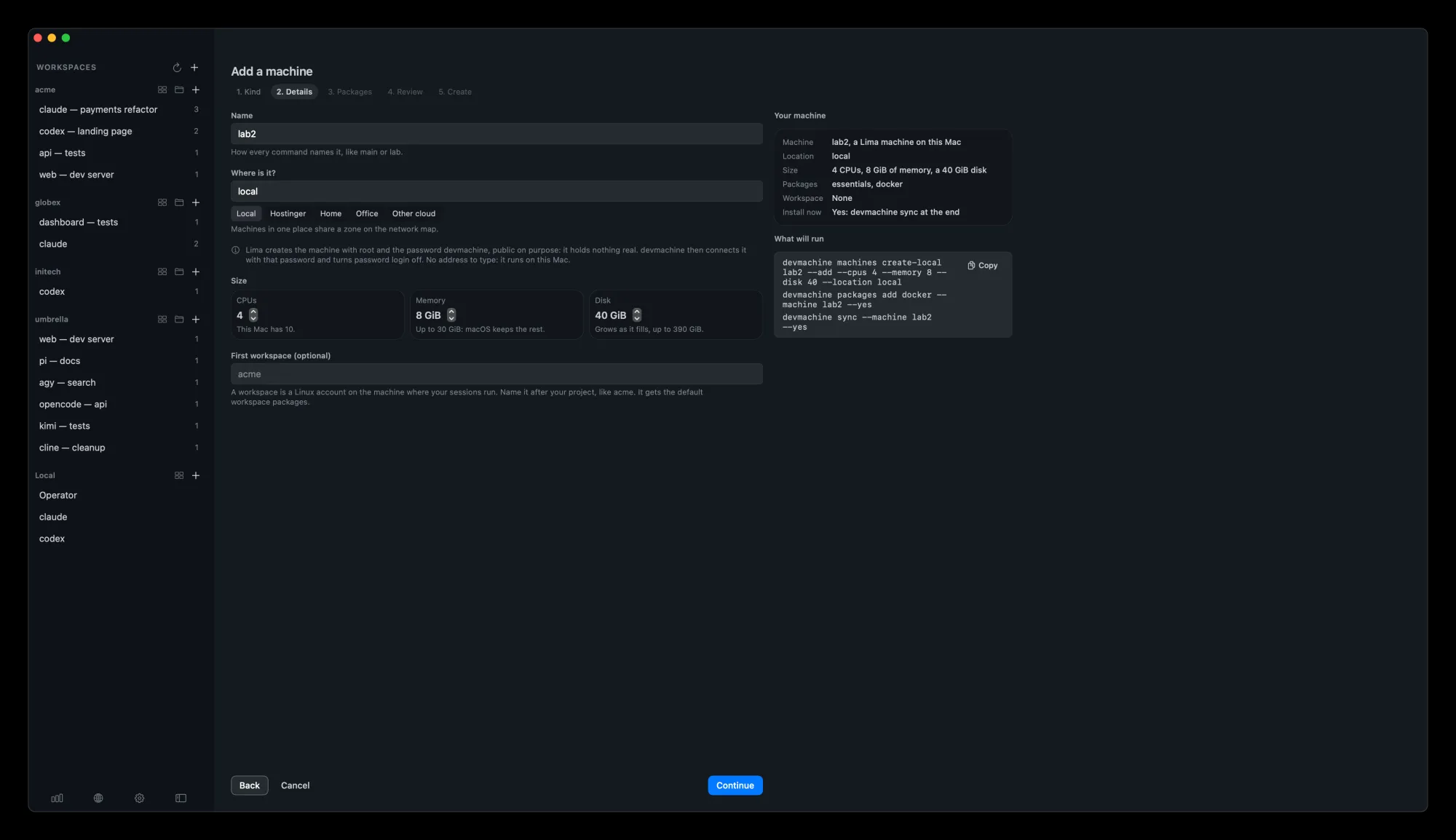
The Add a machine page on its details step for lab2, a Lima machine, with a "Where is it?" field set to local and choices Local, Hostinger, Home, Office and Other cloud, beside the commands it will run.

A new machine says where it lives.

12

Workspaces by machine

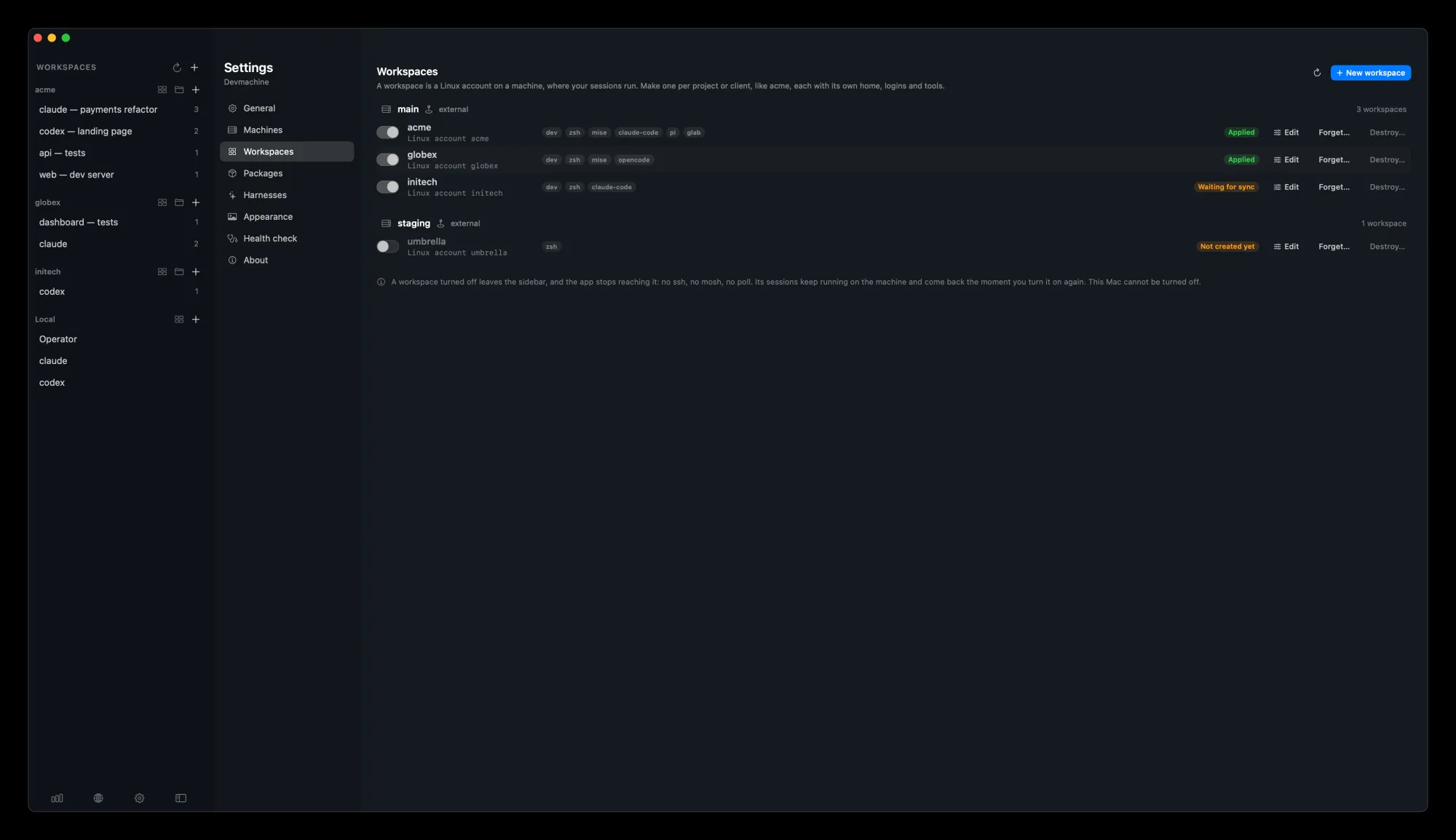
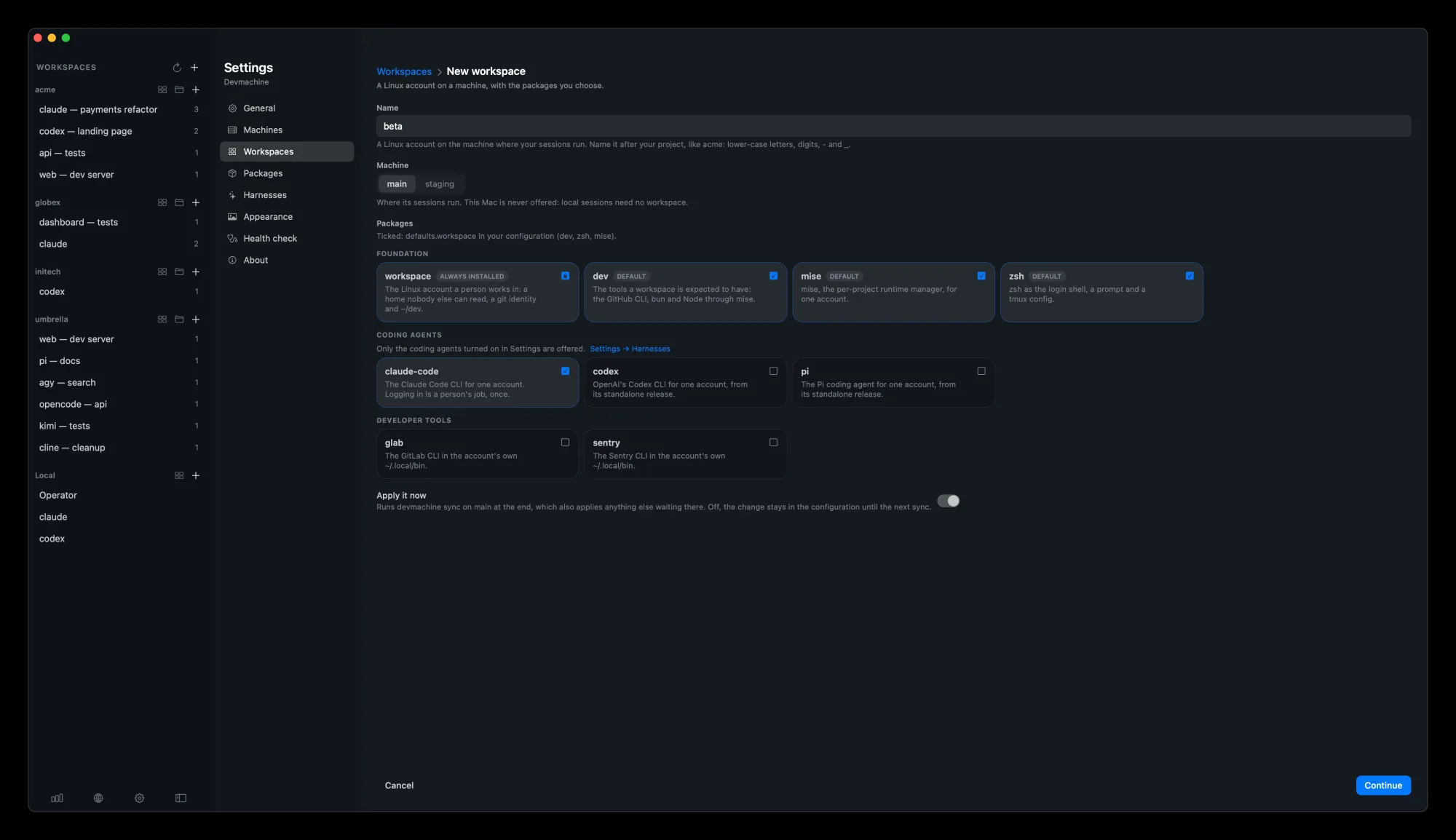
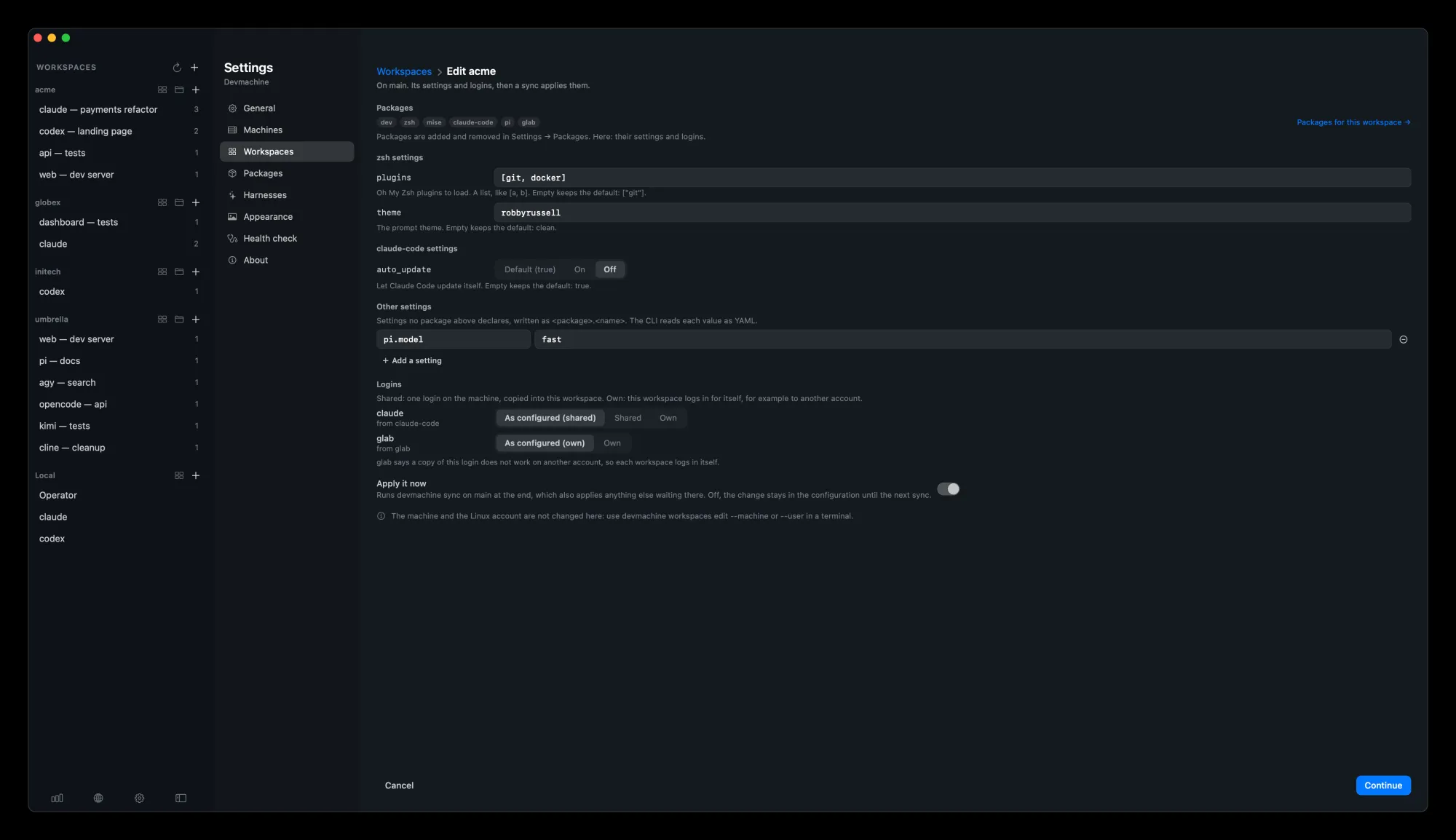
Every workspace, grouped by the machine it lives on, each with an on/off switch. Turn one off and it leaves the sidebar, and the app stops reaching it; its sessions keep running. Make a new workspace or edit one without leaving Settings. Edit holds its settings and logins; its packages live in Packages.

Settings on Workspaces: acme, globex and initech under main and umbrella under staging, each with a switch, its packages, a status such as Applied or Waiting for sync, and Edit, Forget and Destroy.
Grouped by machine, each one on or off.
Workspaces › New workspace inside Settings: the name beta, the machine main, and package cards for the foundation, coding agents and developer tools.

A new workspace, inside Settings.

Workspaces › Edit acme: zsh plugins and theme, a claude-code setting, a custom setting and the claude and glab logins, with a link to its packages.

Edit its settings and logins.

13

Packages, many places at once

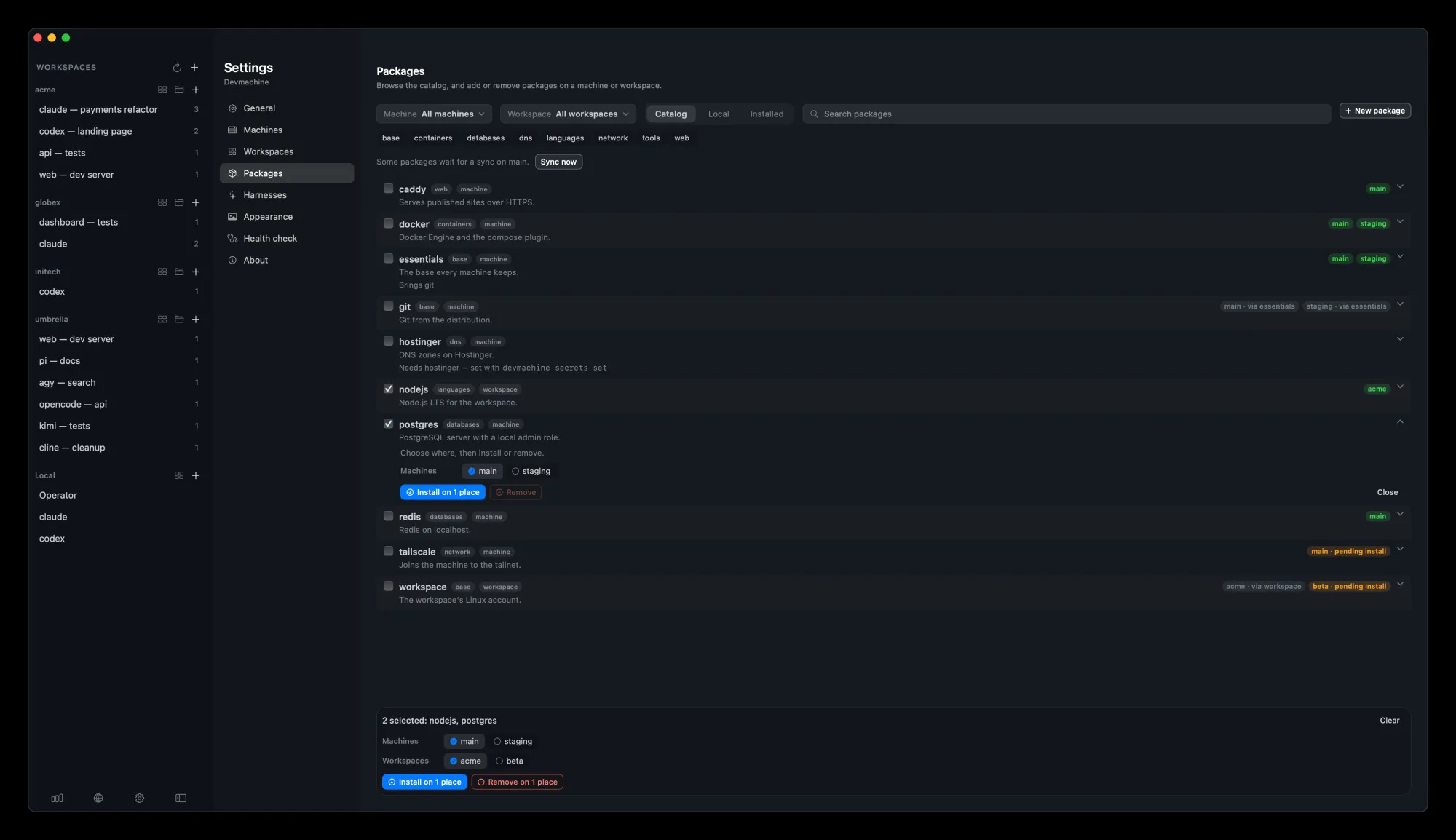
Browse the catalog, your own local packages, or what is installed. Narrow it down by machine and workspace. Click a row to choose where it goes, or tick several and install or remove them on many places in one go; each machine syncs in the corner. New package opens a local session with a coding agent to write one, and each local package opens its folder in one click.

Settings on Packages: Machine and Workspace menus, Catalog, Local and Installed tabs, and a list of packages such as caddy, docker, nodejs and postgres with where each is installed. postgres is open with main chosen, and nodejs and postgres are ticked, with Install and Remove for both at the bottom.
Pick where, then install or remove.
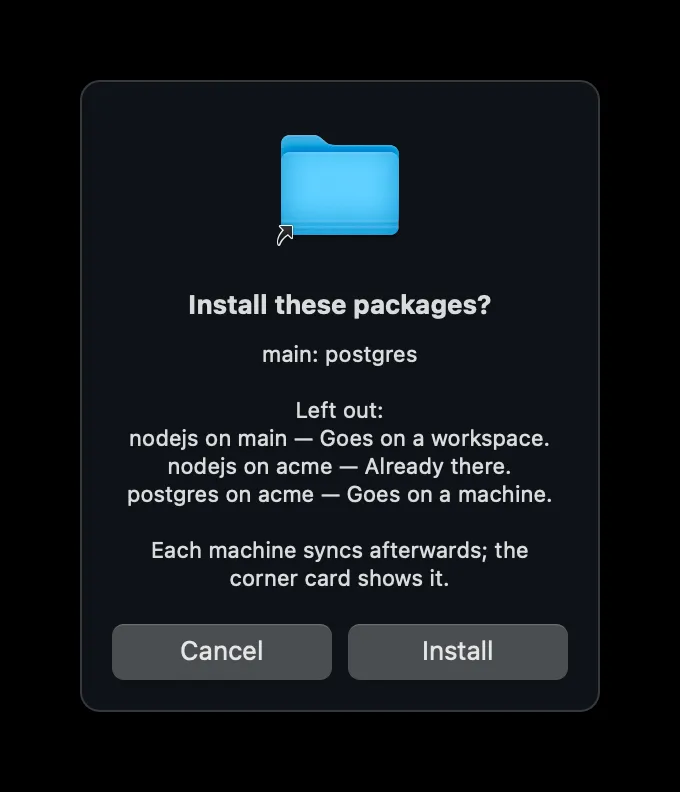
A dialog asking "Install these packages?": postgres on main, with what is left out and why.

It says what it will do first.

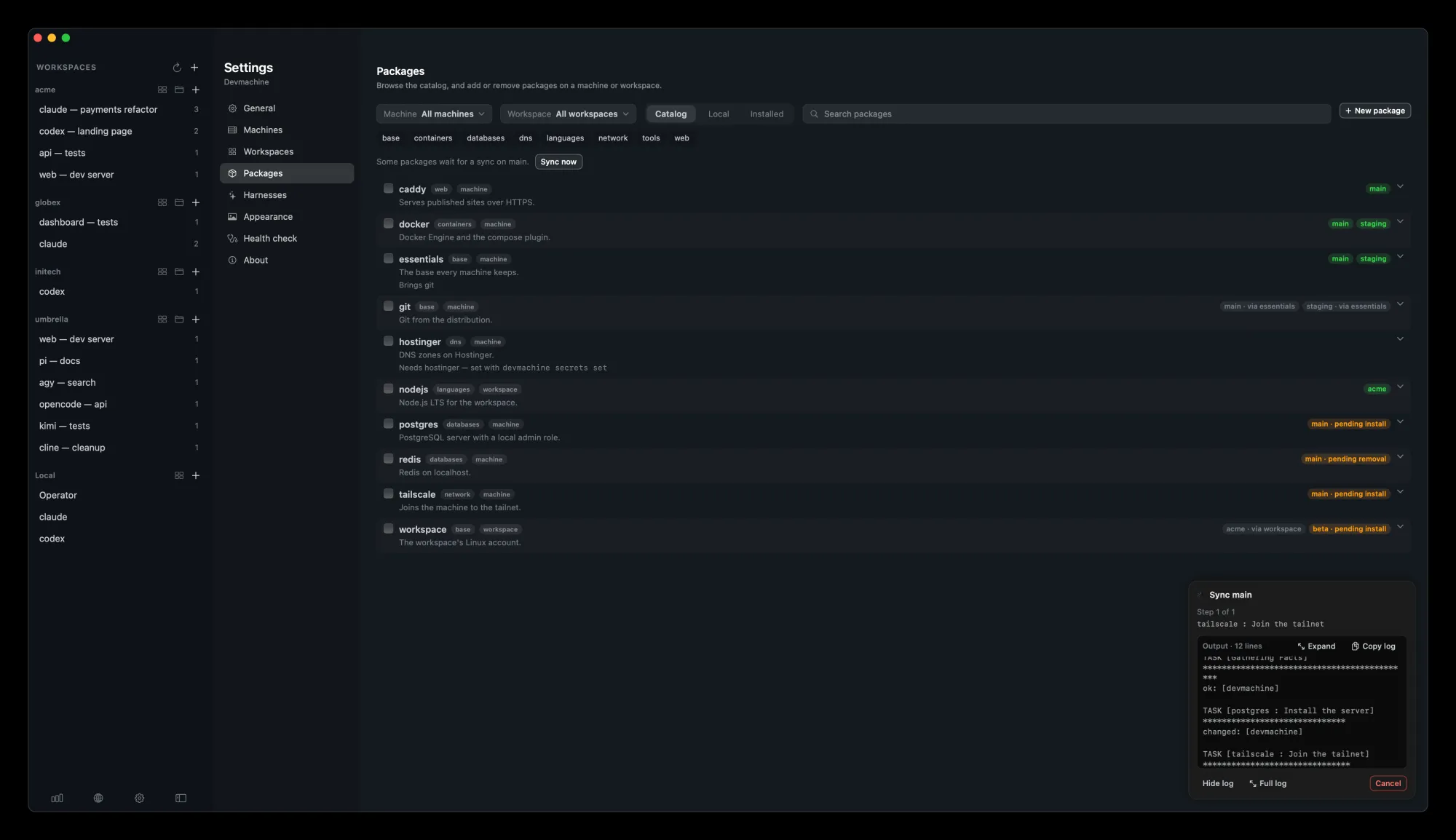
The Packages list with postgres and tailscale pending install on main and redis pending removal, while a Sync main card in the corner shows its log.

The sync runs in the corner.

14

Session defaults

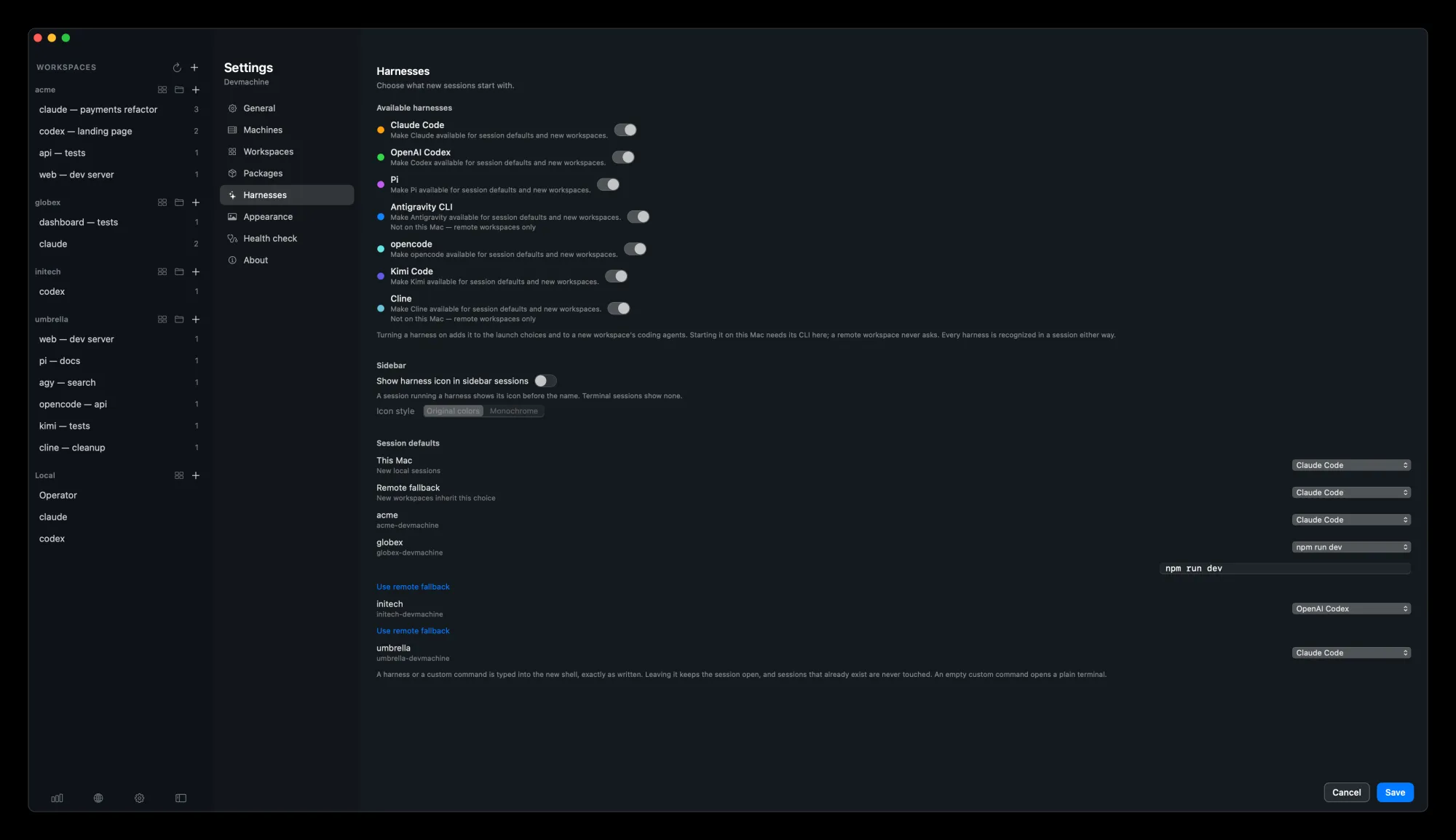
Choose what a new session opens, per workspace: a plain terminal, a coding agent (Claude Code, Codex, Pi, Antigravity CLI, opencode, Kimi Code or Cline), or a command of your own.

Settings, a page beside the sidebar, on Harnesses: seven coding agents to turn on, and session defaults where acme opens Claude Code, globex runs npm run dev and initech opens OpenAI Codex.
Terminal, a coding agent or your own command.

15

Health check

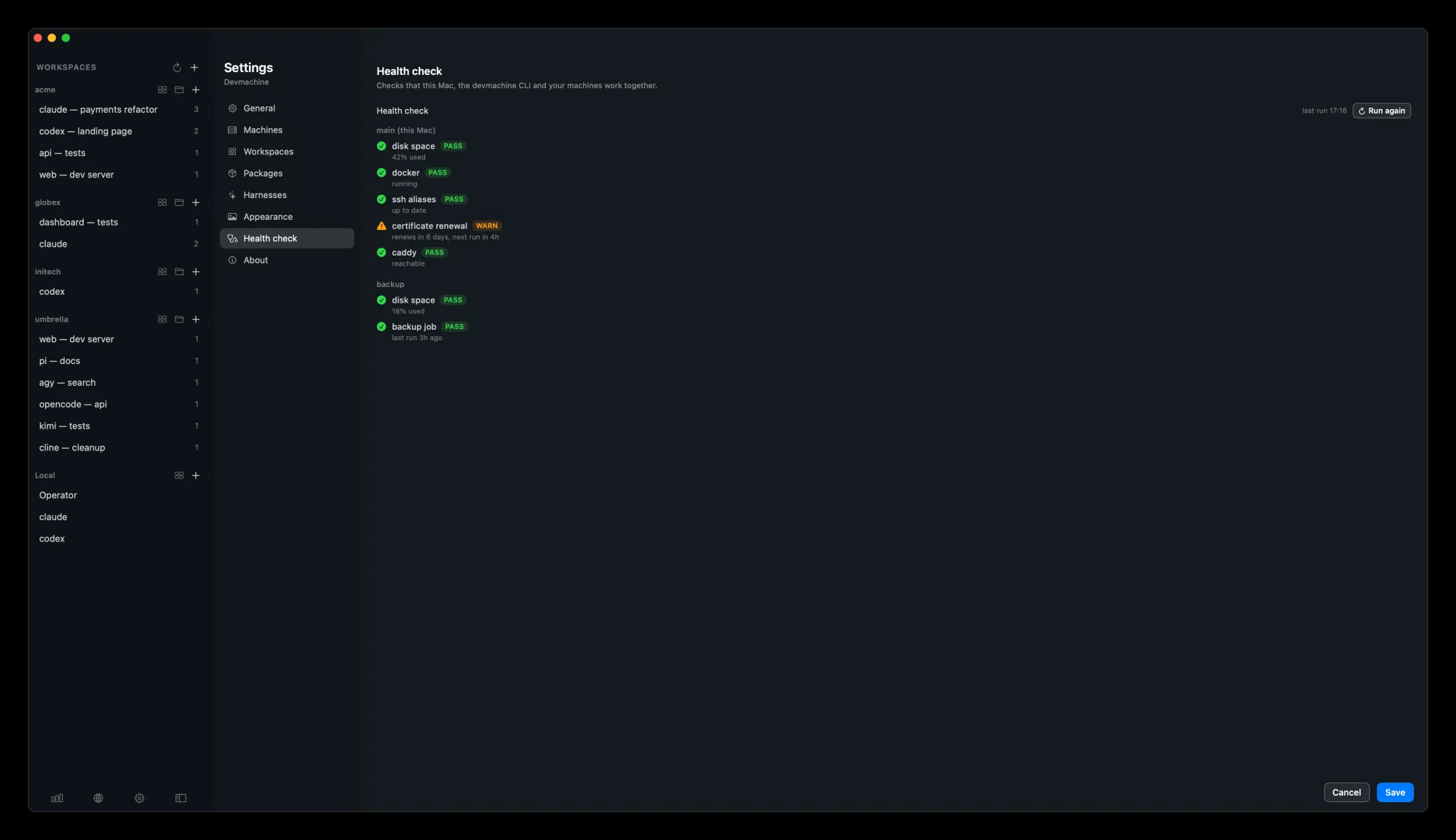
The same checks as devmachine doctor, for every machine, one click away in Settings → Health check.

Settings, a page beside the sidebar, on Health check: the checks for main and backup, every one passing but a certificate renewal warning.
devmachine doctor, in the app.

16

CLI updates in the corner

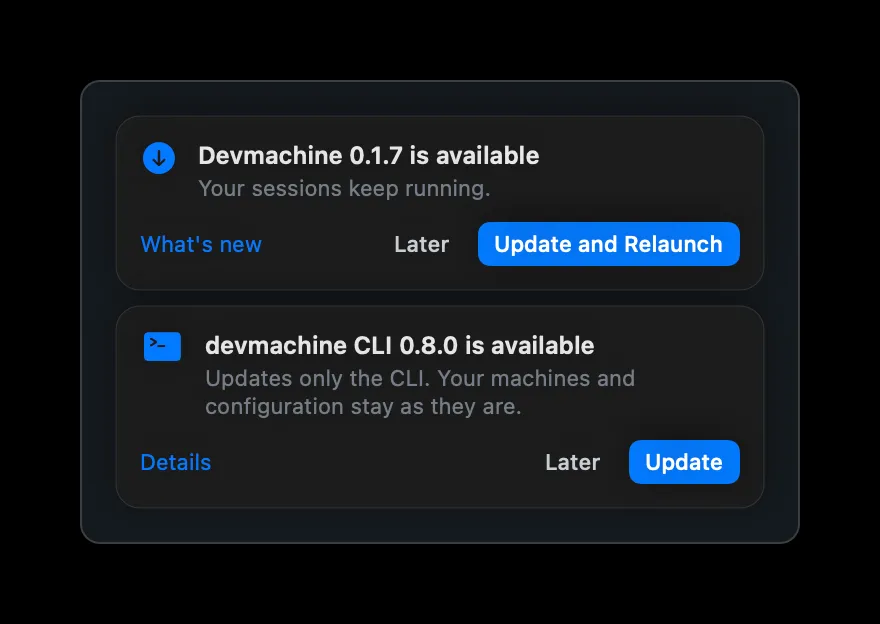
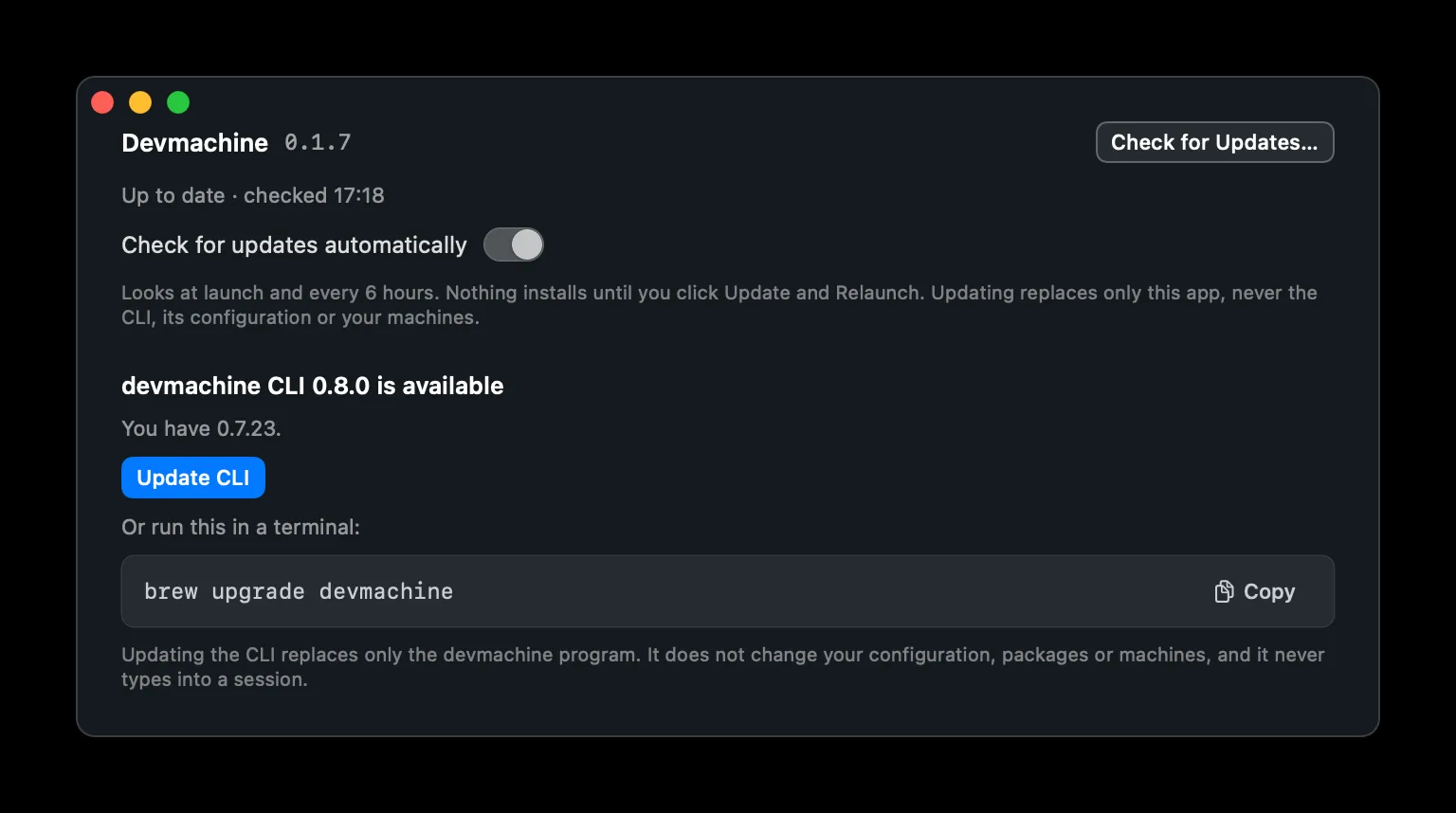
When a newer devmachine CLI is out, a card in the corner says so, under the app's own. Update installs it, Later hides it until the next one, and Details opens Settings → About. Your machines and configuration stay as they are.

Two cards in the corner: Devmachine 0.1.7 is available, with Update and Relaunch, and devmachine CLI 0.8.0 is available, with Details, Later and Update.

A card for the app, and one for the CLI.

Settings on About: devmachine CLI 0.8.0 is available, you have 0.7.23, with an Update CLI button and the brew upgrade devmachine command to copy.

Details: the version and the command.

In short

Setup, guided

A server or a machine on your Mac, set up in the app with every log shown.

Operator

A session in your devmachine folder, always one click away.

Sessions that stay

Quit or update the app: every session, local or remote, keeps running.

Grids

Several sessions of one workspace, side by side.

⌘K

Jump to any screen, session, machine or action.

A context panel

Todo, pull requests, links, files and git of each session.

Home, stats and health

RAM, disk, load, containers and a health check of every machine.

A network map

Your machines by place, with their sites, links and workspaces.

Map as wallpaper

A photo, a gradient or your network behind Home.

Packages

Install or remove on many machines and workspaces at once.

Workspaces

Grouped by machine, each one on or off with a switch.

Sites and DNS

Publish a port in a few clicks. See the records of each provider.

Session defaults

Terminal, a coding agent or your own command, per workspace.

Menu bar

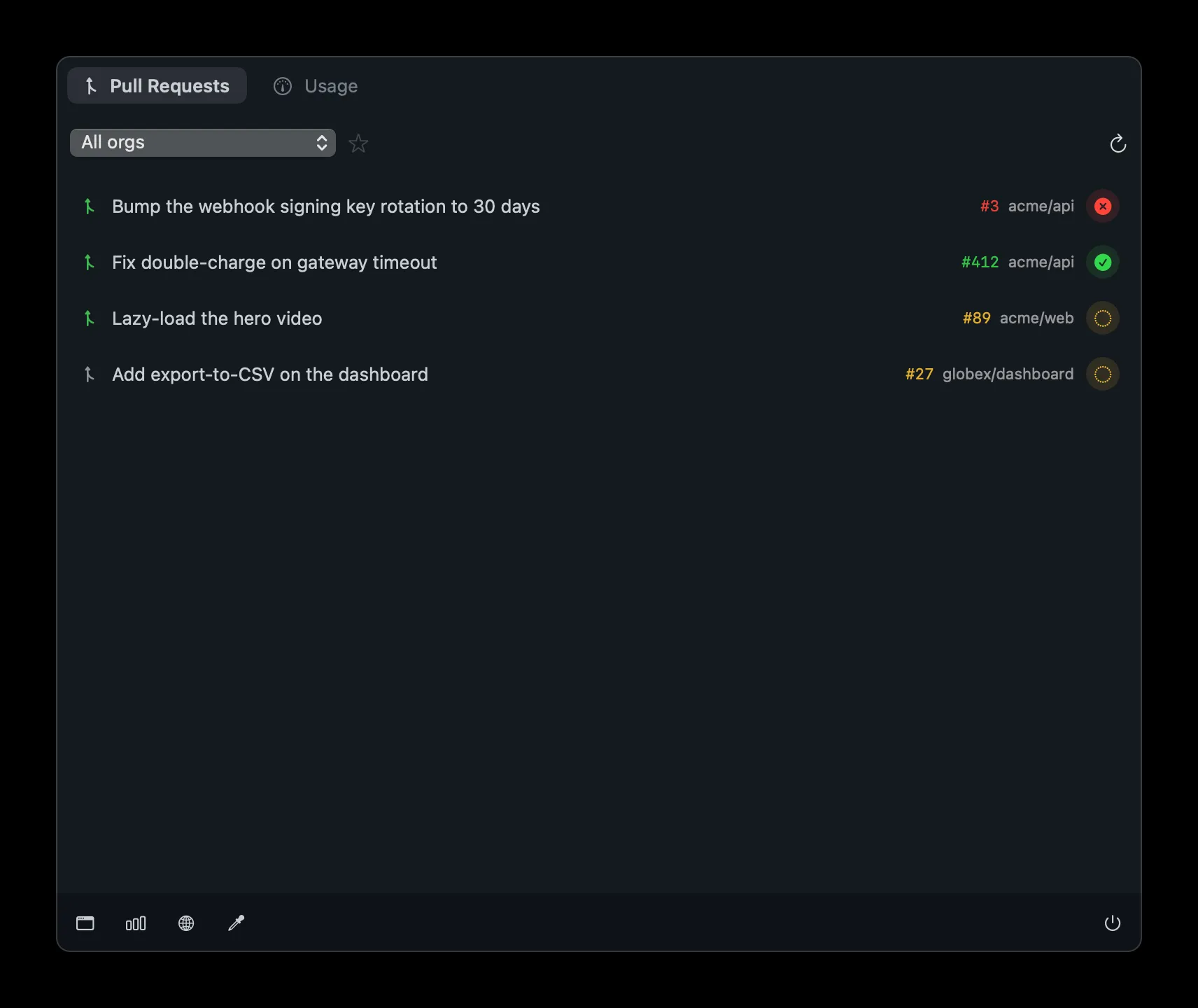
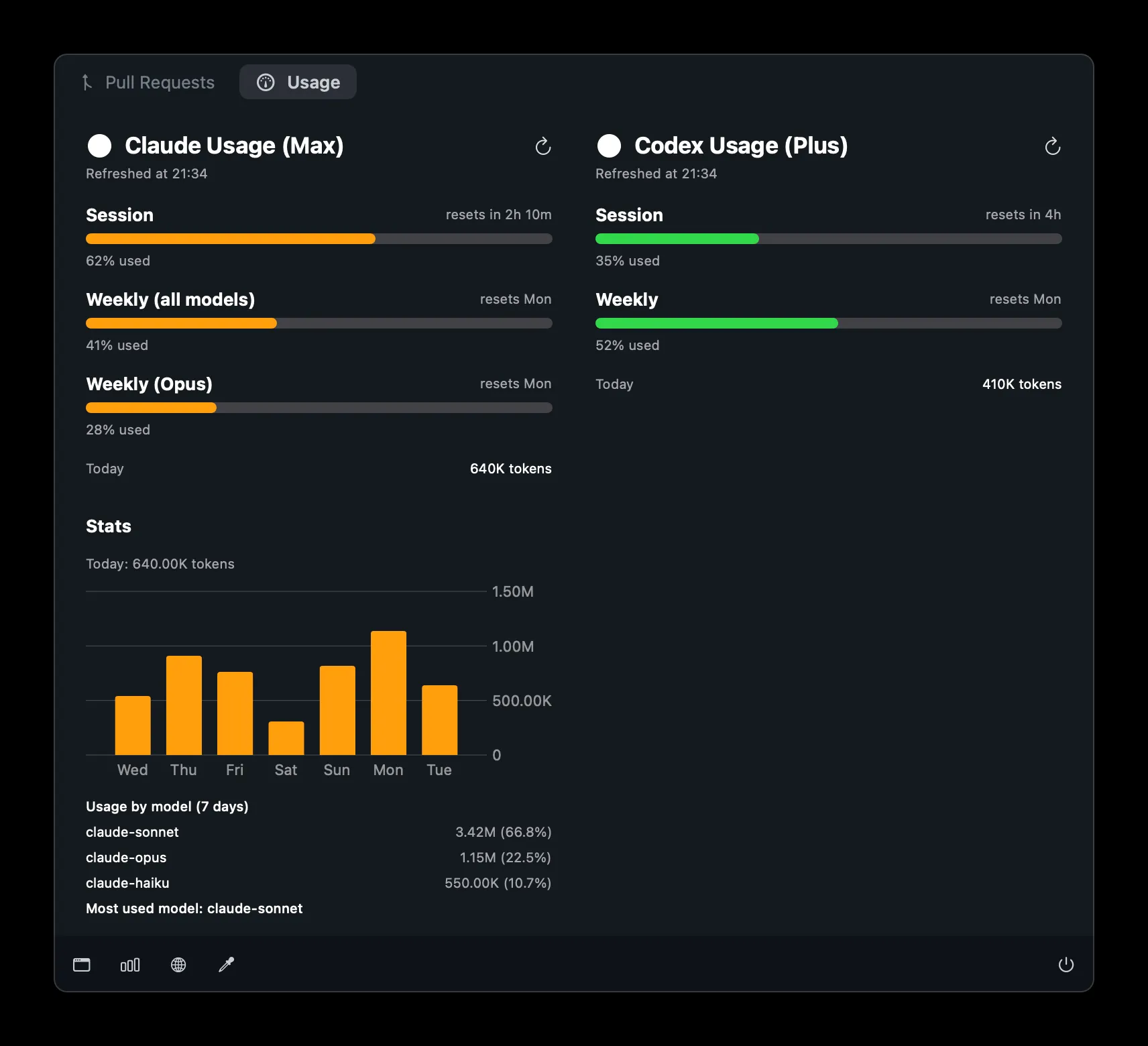
Pull requests, and Claude Code and Codex usage.

Drop or paste files

Drag files or paste an image into a session. They land on its machine, path typed in.

A files view

Browse and preview the files of a workspace without a session.

CLI updates

A card in the corner when a new CLI is out.

Lima, from the app

Start, stop or delete a machine on your Mac.

Rather start in the terminal? The CLI is all you need. You can add the app later.

Start with the CLI →